


How to Change the Max Players on a Palworld Server

Some adventures are best enjoyed with friends. Others somehow turn into a full-blown Pal-catching empire with half your Discord joining in. If your server is running out of room for new players, Palworld makes it easy to increase or decrease the player limit. In this guide, we’ll show you where to find the setting and how to adjust the maximum number of players allowed on your server.
Changing the Maximum Players
Navigate to your Nodecraft Dashboard.
Click the Panel button for your Minecraft server.
Locate and click Game Settings in the menu on the left side.
Under the Basic and Admin tab, scroll down to the Max Players option.
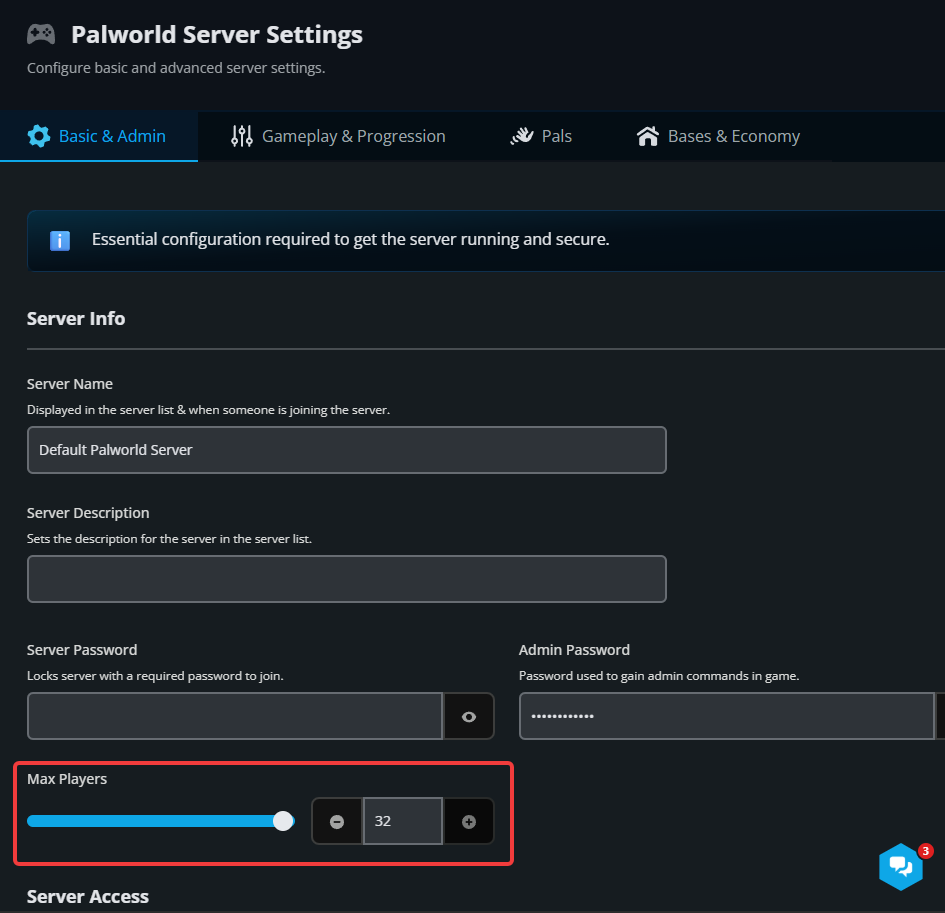
Change this to change the maximum number of players that can connect to your server at one time. This number ranges from 1-32.
How Many Players Can a Palworld Server Realistically Handle Before Lag Starts?
A well-maintained server can often support 20 to 32 active players without major issues. However, servers with large automated bases, hundreds of active Pals, or extensive exploration may start experiencing performance drops sooner. If you notice lag, rubberbanding, or delayed actions, reducing server load or upgrading your server resources can help improve stability.
For the best experience, it's a good idea to gradually increase your player count and monitor performance as your community grows.
Conclusion
Changing the max player count on your Palworld server only takes a few moments and can make a big difference in how your world feels. Whether you're opening the gates for a growing community or keeping things limited to a small group of friends, adjusting the player limit helps you create the experience you're looking for. Now get back out there and see how many Pals your server can handle.
Need Help?
If you have questions or run into any issues, our support team is here to help! Reach out using the support widget on our website or visit our support center for further assistance.