


How to Set an Admin Password for Your RuneScape: Dragonwilds Server

In RuneScape: Dragonwilds, Admin powers for dedicated servers are automatically granted to anyone who uses the Admin Password. Learn how to set this password below, and keep it safe to protect your server from unwanted access.
Set Your Admin Password
There are two ways for you to add a password for your server, directly within our server control panel, and by editing the server's config files.
Nodecraft Server Control Panel
Login to your Nodecraft Dashboard
Click on Panel with the gear icon located in the bottom right of your RuneScape: Dragonwilds server.
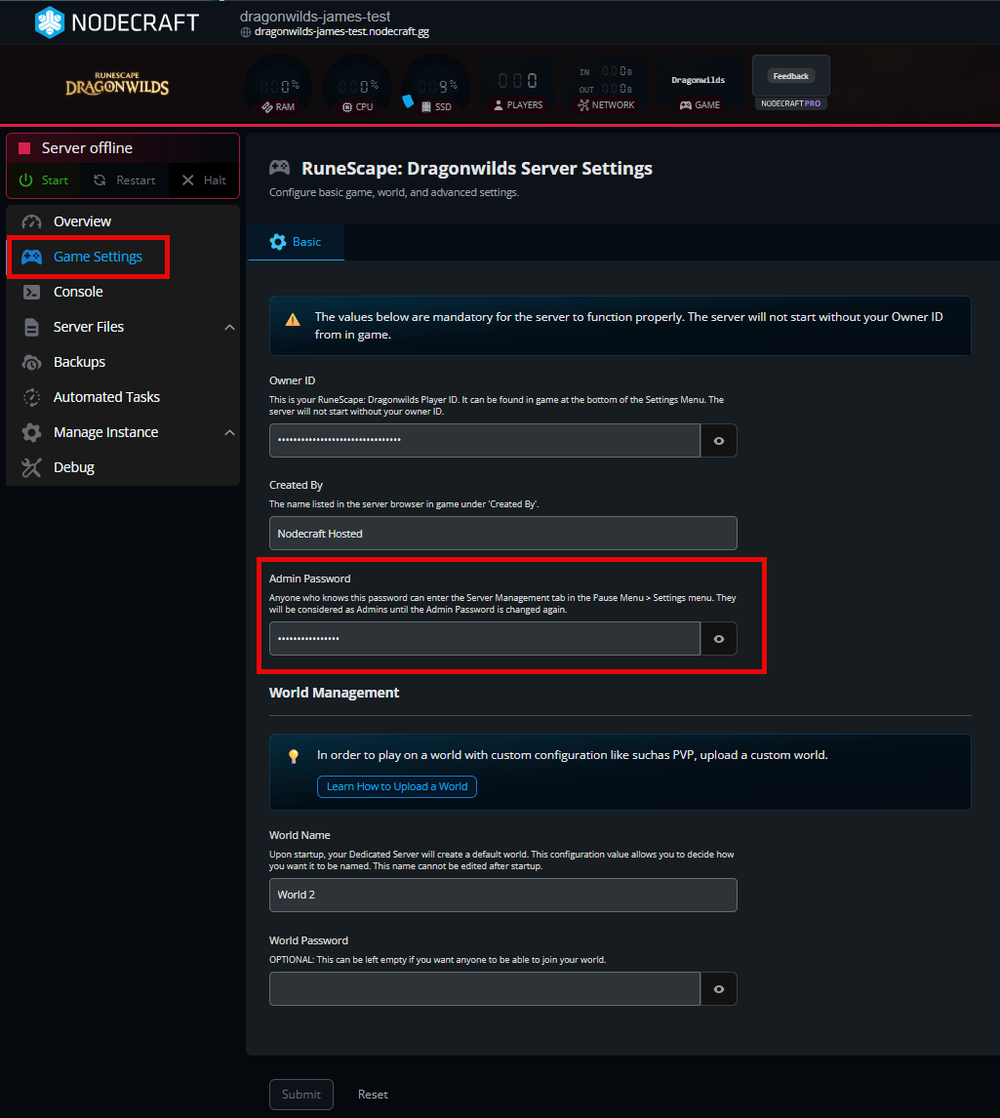
Go to your Game Settings tab on the left-hand side of the control panel.
Navigate to the Basic tab.
Enter the password you want in the Admin Password field.
Just be sure to Save your changes.
Editing Files
If you don't have a server with us at Nodecraft, or just prefer to edit the files directly, this is the section you'll want to look at.
Login to your Nodecraft Dashboard
Click on Panel with the gear icon located in the bottom right of your RuneScape: Dragonwilds server.
Go to File Manager/Files in the left-hand side of the control panel.
Navigate to the file via this path:
/RSDragonwilds/Saved/Config/LinuxServer/DedicatedServer.ini.Set the Admin Password for your server by the AdminPassword= setting.
Save, and then Start the server.
Admin Menu
To access Admin controls in RuneScape: Dragonwilds, like banning and kicking players, follow the steps below.
Open the game and Join Your RuneScape: Dragonwilds Server.
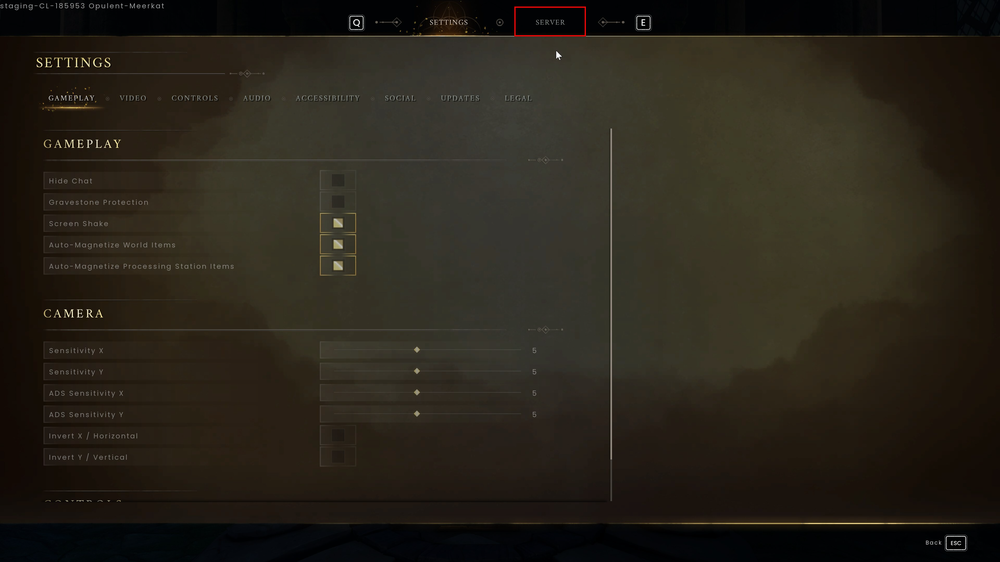
Hit escape to open the settings menu
At the very top of the screen, you must hit Server to navigate to those settings
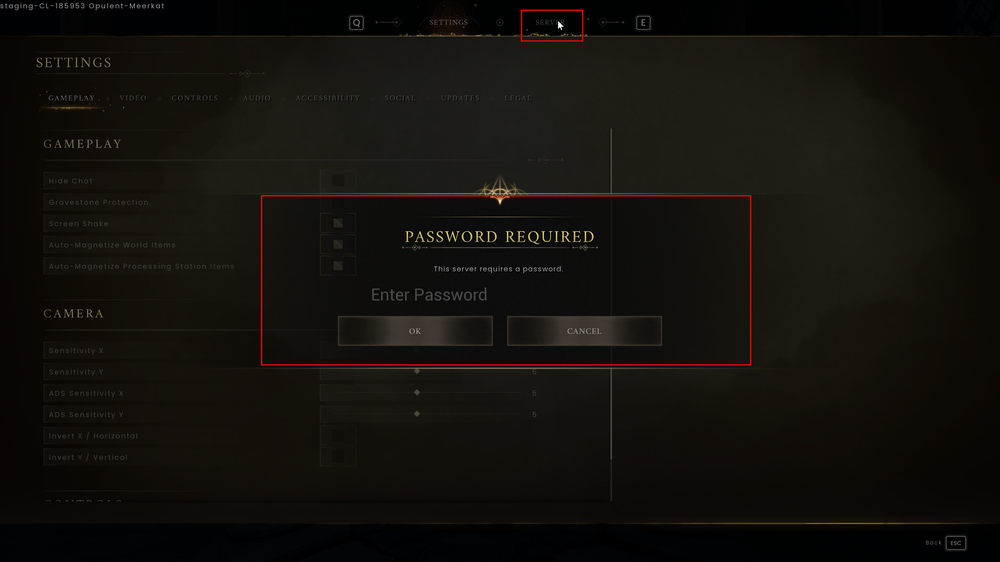
Enter the admin password you created above and click OK.
Navigate through the server settings menu and perform admin actions.
What's the difference between Owner and Admin
In RuneScape: Dragonwilds, Dedicated Servers divide users into three categories:
Owner, the person whose Player ID matches the Owner ID set in config.
Owners can Ban and Unban anyone, offline or online.
Admin, whoever entered the admin password successfully when entering the Server Management page.
Admins can Ban regular regular users who are online. Admins cannot Unban.
regular users.
Conclusion
Securing your RuneScape: Dragonwilds server with an Admin Password is the best way to maintain control over your world and protect it from unauthorized changes. Whether you used the Nodecraft Control Panel for a quick setup or manually configured your files, you now have the power to manage players and enforce rules directly from the in-game settings.
Keep your password safe, and you're all set to lead your community through the wilds!
Need Help?
If you have questions or run into any issues, our support team is here to help! Reach out using the support widget on our website or visit our support center for further assistance.