


How to Change Max Players on My RuneScape: Dragonwilds Server

Want to push the limits of RuneScape: Dragonwilds by increasing the player limit beyond the default of 6? While the game is designed for smaller groups, we know sometimes the whole squad wants to jump in on the action.
Before you scale up, keep in mind that more players mean more strain on your server's resources. If you're planning on hosting a large group, you might want to add more RAM to ensure a lag-free experience for everyone.
Step 1: Access Your Nodecraft Panel
Log in to your Nodecraft Dashboard.
Select your RuneScape: Dragonwilds server and click the Panel button (represented by the gear icon).
Important: Stop your server before making any configuration changes to ensure they save correctly.
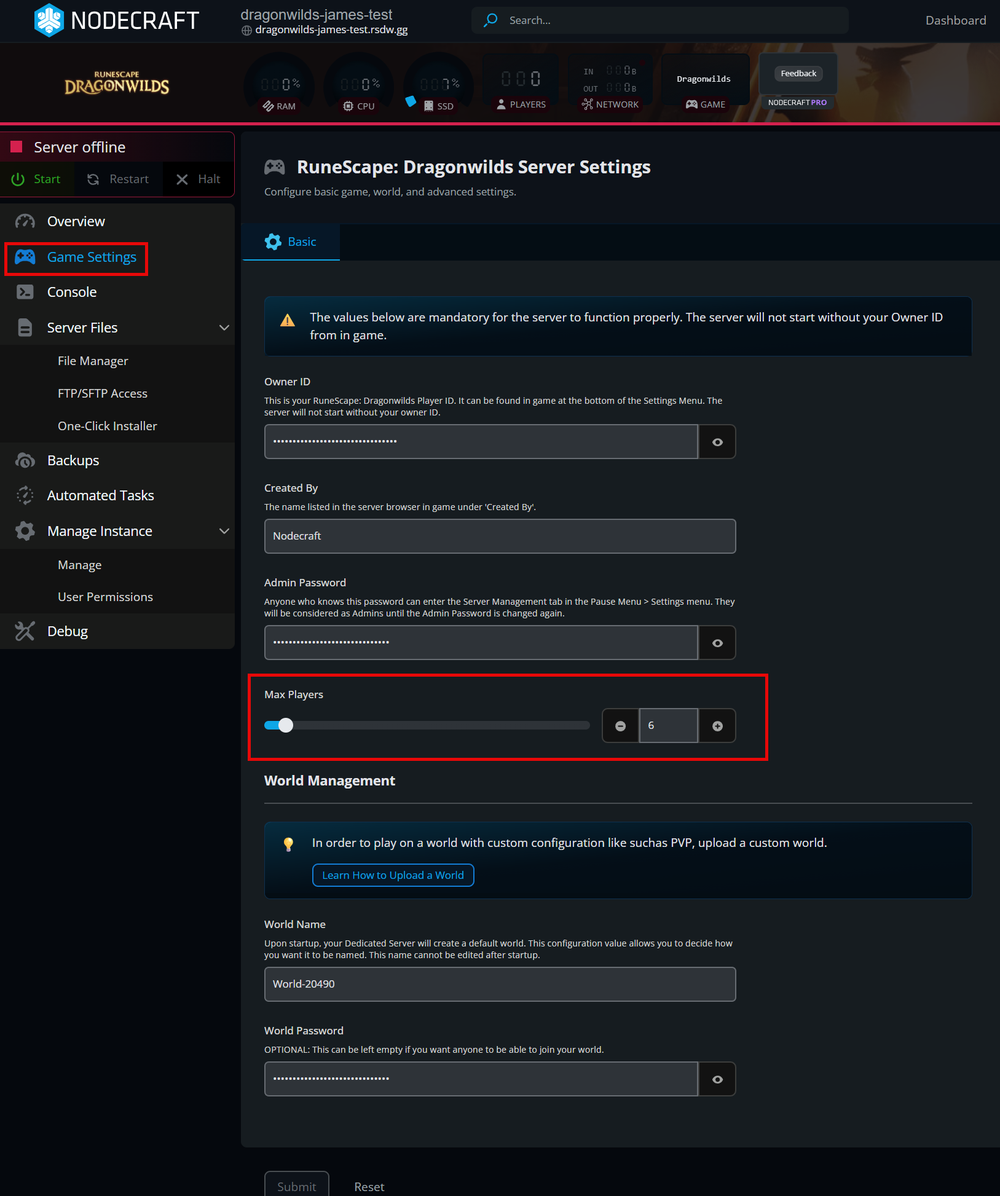
Step 2: Adjust the Player Limit
Locate Game Settings on the left-hand menu.
Find the Max Players section.
Use the slider or type in your desired number of players.
Step 3: Save and Restart
Scroll to the bottom and select Submit to save your changes.
Click Start to bring your server back online with the new player limit.
Frequently Asked Questions
What is the default limit? The official default for RuneScape: Dragonwilds is 6 players.
Will more players cause lag? Yes, more players increase the CPU and RAM usage as the server has to track more entities and world changes.
Do I need an Admin Password? While not required for player limits, setting an Admin Password allows you to manage those players in-game.
Need Help?
If you have questions or run into any issues, our support team is here to help! Reach out using the support widget on our website or visit our support center for further assistance.