


How to Use the Hytale Permissions Manager

In this guide we are going to go over the Permissions Manager for your Hytale server. WIth the Permissions Manager you will be able to create permission groups, edit the permissions for those and default groups or add players to either groups you create or just provide operator/OP permissions to users. By default, any player that joins including yourself will be in the Default group that has no permissions.
Access the Permissions Manager
Open your Dashboard.
Locate your Hytale server and click on the Panel button.
Once on your Hytale server, click on the Players tab.

Once on the players page you will be on the Permissions manager as it’s the default page.
Add a Player to a Group
Every server has an OP group that you can add yourself or others to or you can create a custom group which we will cover below.
From the Permissions tab click on Add Player.

When clicked, a search box will appear. You can search for the username you want to add or select from the dropdown then click + Add player.

Once the player is added under the Players list you can set their group by selecting box to the right of the user and selecting whichever group you want that player in.

Create a New Group
Once on the permissions page, click on Create Group.

Once the new window opens, give the group a name, and then select the permissions you want to add to the group by scrolling down the list or using the search box.
Once you are done click the Create Group button in the lower left corner.
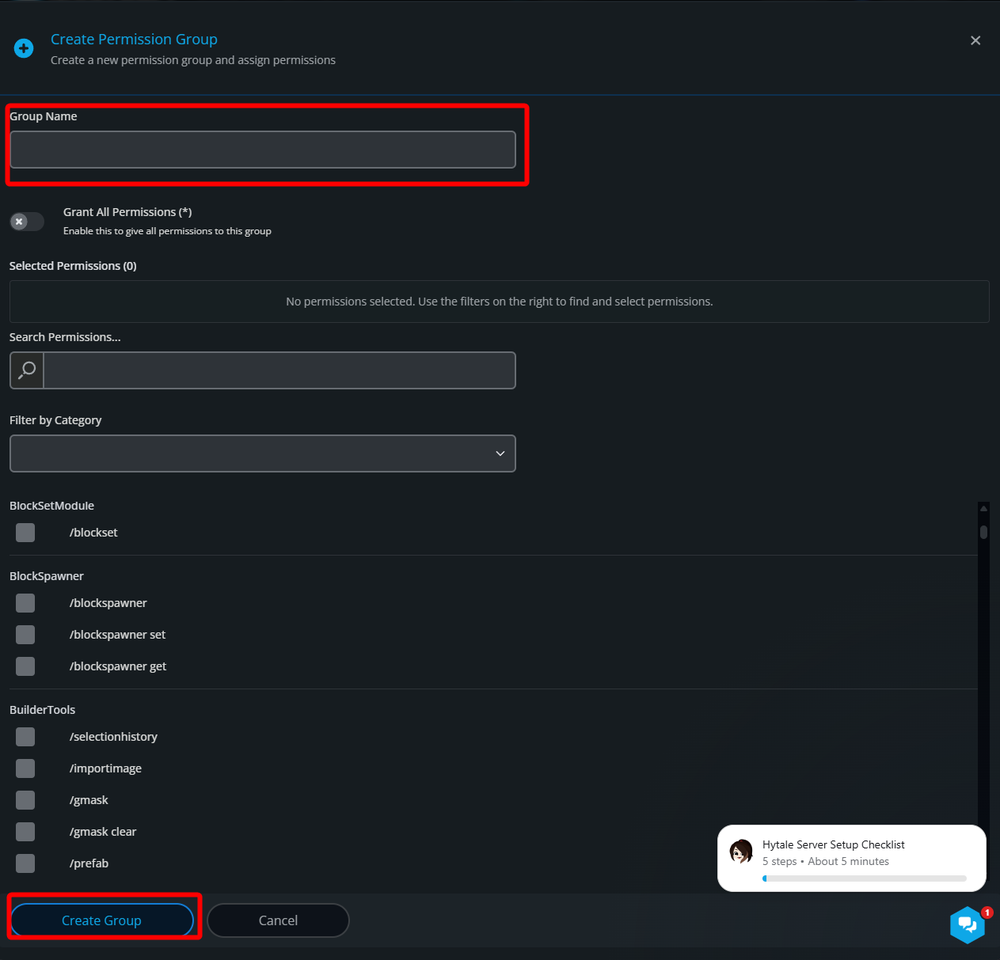
Note: You can always edit the group later if you forget to add any permissions that you wanted to or if you want to remove permissions.
Once the group is created it will immediately be available for players to be added to the group.
Edit or Remove a Group
To edit a group, find the group you want to edit and click on the Edit button or if you’d like to delete a group click the red trash icon to the left of the edit button.

The edit box will be the same UI as if you were creating a new group.
Conclusion
The Hytale permission system is a rather impressive system for being included in the base game. With the built-in permissions manager, you will be able to grant yourself or other trusted players OP permissions or you can create a group and tune it to have the exact command access you’d like without guess work.
Need Help?
If you have questions or run into any issues, our support team is here to help! Reach out using the support widget on our website or visit our support center for further assistance.