


How to Use the Void Wrath Launcher

The Void Wrath Launcher is a Minecraft mod launcher similar to CurseForge, Prism, Modrinth, ATLauncher, and Technic. This guide will walk you through how to install the launcher, find modpacks, and launch them to start playing.
Installing the Void Wrath Launcher
Visit the official Void Wrath Launcher website.
Click Play Free Now to access the download page.
Choose Download for Windows or Cross Platform Download, depending on your operating system.
Once downloaded, unzip the file.
Open the unzipped folder and run the VoidLauncher Application File.

After launching, click Log In at the bottom of the launcher.
Sign in with your Microsoft account (the same account you use for Minecraft).
Once logged in successfully, you’ll see your Minecraft avatar displayed in the lower-left corner of the launcher.

Installing Modpacks via the Void Wrath Launcher
Open the Void Wrath Launcher and ensure you’re logged in.
On the left-hand side, click the drop-down menu under Official Modpacks.
Choose from one of the following categories:
Official Modpacks
All Modpacks
Legacy Modpacks
Vanilla Modpacks
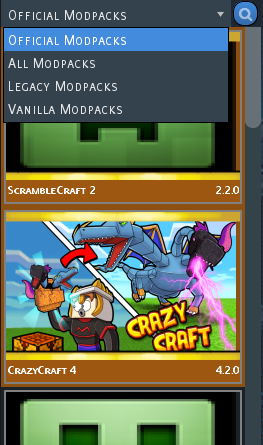
Select the Play button once you’ve chosen your desired modpack.
The launcher will download and install all necessary files automatically.
After installation completes, click Play again to launch the modpack and join your server.
Troubleshooting
If you encounter issues, here are a few quick fixes:
Launcher won’t open:
Ensure Java 8 or later is installed.
Try running the launcher as Administrator.
Temporarily disable antivirus or Windows SmartScreen if it blocks the app.
Login issues:
Double-check that your Microsoft account is linked to Minecraft Java Edition.
Clear cached credentials in the launcher’s settings and re-log in.
Modpack won’t install or load:
Verify you have enough storage space and RAM allocated.
Delete the modpack folder and reinstall it from scratch.
Note: You can find the directory for the modpack folder and the RAM allocation options in the Options tab of the VoidWrath launcher.
Check your internet connection and try again.
Game crashes or freezes:
Lower memory allocation if it’s set too high.
Update your graphics drivers.
Conclusion
The Void Wrath Launcher offers an easy and centralized way to play modded Minecraft. Once installed and configured, you can explore hundreds of modpacks, from official collections to community favorites, with just a few clicks. If problems arise, refer to the troubleshooting section above or visit the official Void Wrath Support Page
Void Wrath is a mod launcher much like CurseForge, Prism, Modritch, ATLauncher, Techinc and others! In this guide, we will go over how to install, find modpacks and launch your modpack via the Void Wrath Launcher.
Need Help?
If you have questions or run into any issues, our support team is here to help! Reach out using the support widget on our website or visit our support center for further assistance.