


How to Invite Friends to Your VNyan Server

Inviting friends to your VNyan server allows multiple VTubers to join the same scene and collaborate in real time. This guide explains how to generate invitations, share access, and manage participants.
Launch VNyan and Open VNyanNet
Open VNyan on your computer.
Select the VNyanNet option from the right-side menu.
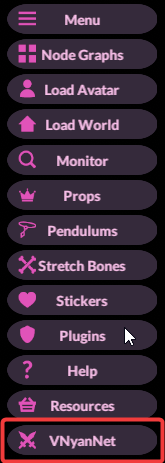
Log in to your VNyan Server. If you’re unsure of how to connect, check out our guide here!
Once you’re logged in, you will see your Lobby details with the Lobby ID generated.
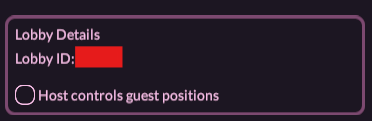
Provide this Lobby ID and the Lobby Password you entered, along with the Server Address and Server Password to the players you wish to join.
Note: It may take a few seconds for the connection to establish!
Confirm Connection
Once your friends join, check the VNyanNet participant list.
Their avatars should appear with automatically assigned slots.
Reassign slots if needed to organize the scene.
Note: Hosts can move avatars, reassign slots, or remove participants if necessary.
Troubleshooting
Friend cannot join server Ensure the server is online and accessible, the invite link/code is correct, and the password (if any) is shared.
Friend joins but cannot see others Ask them to reconnect, and verify their VNyan version matches the host’s.
Invite link expires or is invalid Generate a new link from the invite menu and resend.
Conclusion
Inviting friends to your VNyan server is simple and ensures smooth multiplayer collaboration. By generating an invite link or server code, sharing it with your friends, and confirming connections in VNyanNet, you can get everyone into your scene quickly and efficiently. Always check permissions and slot assignments to maintain order during collaborations and use troubleshooting tips if anyone experiences connection issues.
Need Help?
If you have questions or run into any issues, our support team is here to help! Reach out using the support widget on our website or visit our support center for further assistance.