


How to Upload an Avatar to VNyan

How to Upload an Avatar to VNyan
This guide walks you through uploading and loading an avatar in VNyan, whether you are setting one up for the first time or switching to a new model.
Uploading / Loading Your Avatar
First-Time Setup
Launch VNyan.
On first launch, VNyan will automatically open the Setup Wizard.
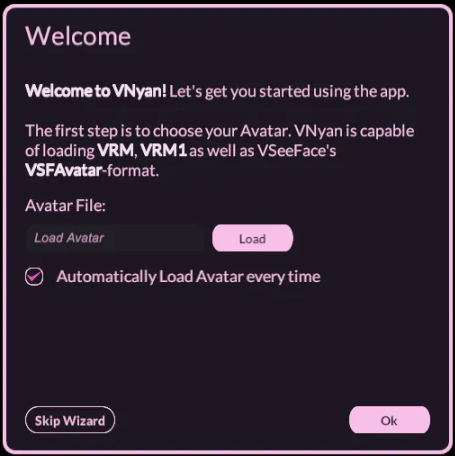
Follow the on-screen instructions to add your avatar.
Make sure your model is in one of the supported formats:
VRM
VRM 1.0
VSFAvatar format
Upload your VTuber model in the desired field.
Complete the wizard and confirm your avatar loads correctly.
Changing an Existing Avatar
If you already have an avatar loaded and want to switch to a new one:
Launch VNyan.
Open the Right-Side Menu.
Select Load Avatar.
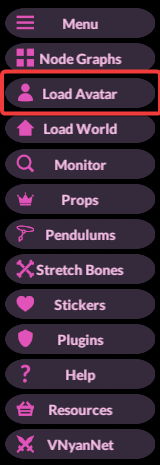
Upload your new avatar file.
Adjust settings and configuration as needed (expressions, tracking, offsets, etc.).
Troubleshooting
Avatar does not appear after loading
Verify the model format is VRM, VRM 1.0, or VSFAvatar. Restart VNyan and try again.
Setup Wizard does not appear
Use the Load option from the right-side menu to manually add your avatar.
Avatar loads incorrectly or appears distorted
Check the model’s scale and orientation settings, and confirm the avatar was exported correctly from your modeling software.
File will not upload
Ensure the file is not zipped and that VNyan has permission to access the folder location.
Conclusion
Uploading an avatar to VNyan is a quick and straightforward process. First-time users can rely on the built-in setup wizard, while returning users can easily swap avatars using the Load option. As long as your model is in a supported format and properly configured, you’ll be ready to stream or record with VNyan in just a few steps.
Need Help?
If you have questions or run into any issues, our support team is here to help! Reach out using the support widget on our website or visit our support center for further assistance.