


How to Use the Hytale Launcher

This guide will go over using the Hytale launcher including, starting a single player world, adding and joining a server and customizing your avatar
Opening the User Folder
The Hytale launcher itself currently has limited options upon release. Outside of just starting the game the most useful feature is being able to directly open the user directory for the game files. That would be where your worlds are saved and where you would install mods, if you wish.
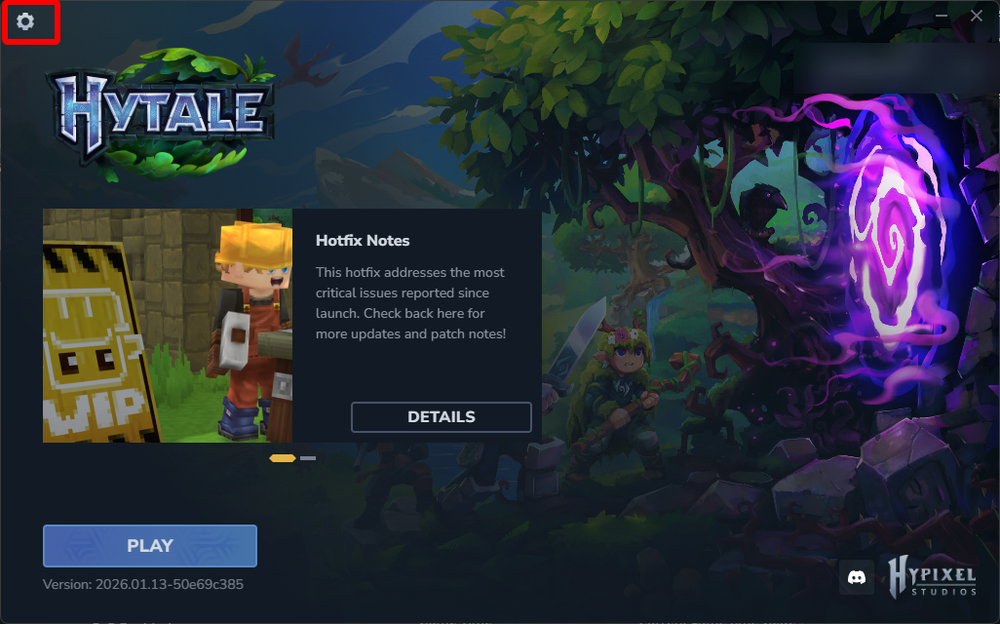
To find your user folder, click on the gear icon in the upper right or left corner.
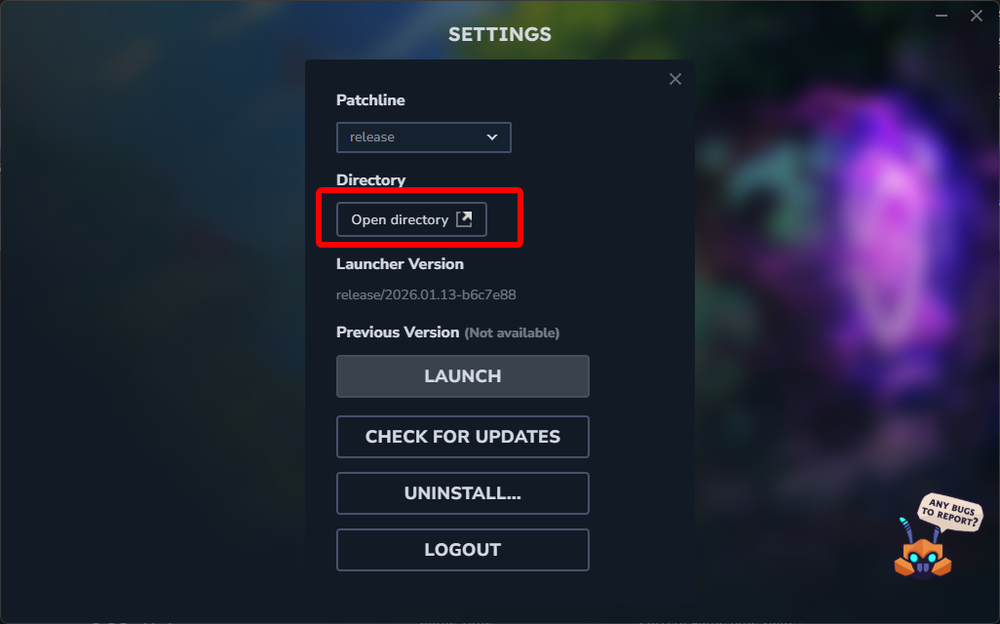
Click on the open directory button.
Starting Hytale
Starting the game from the launcher is quite simple!
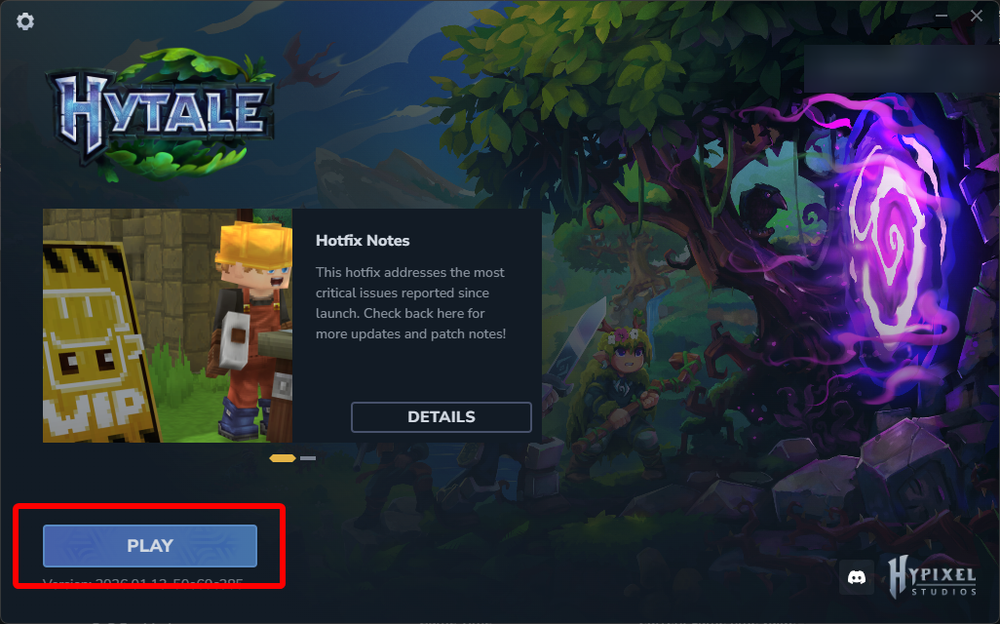
To start the game, open the launcher and click the Play button.
How to Start a Single Player World
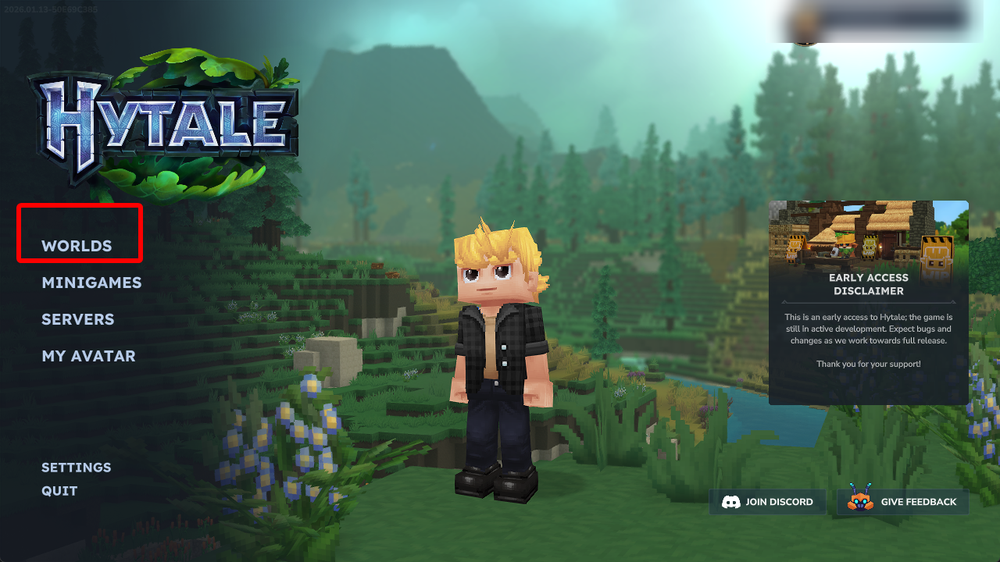
Once Hytale is open, click the Worlds option.
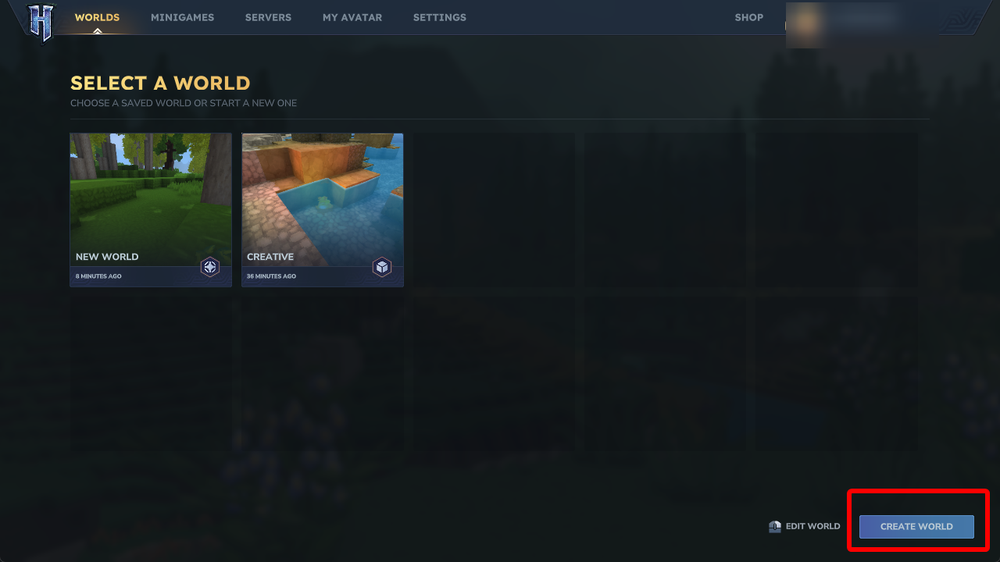
Select Create World.
Select your gamemode, and give the world a name then click Create World.
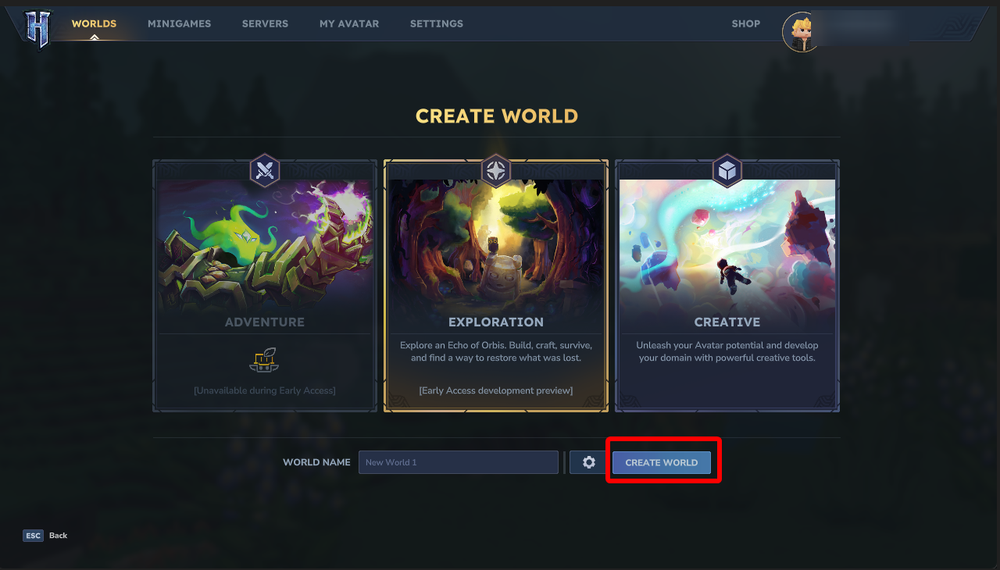
Note: If you want to change world settings beforehand click on the gear icon.
How to Add a Server to Your Server List.
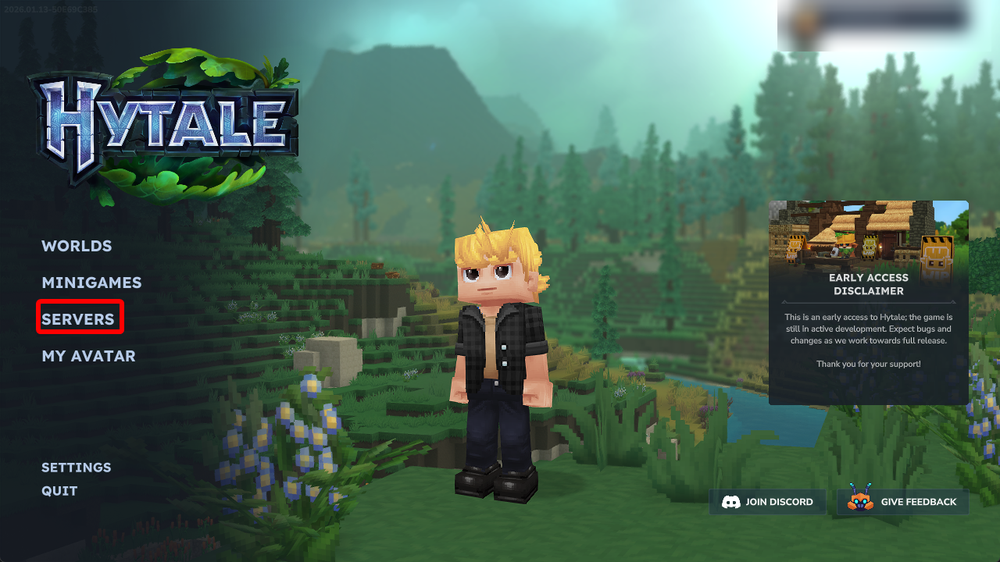
Once Hytale is open, click the Servers option.
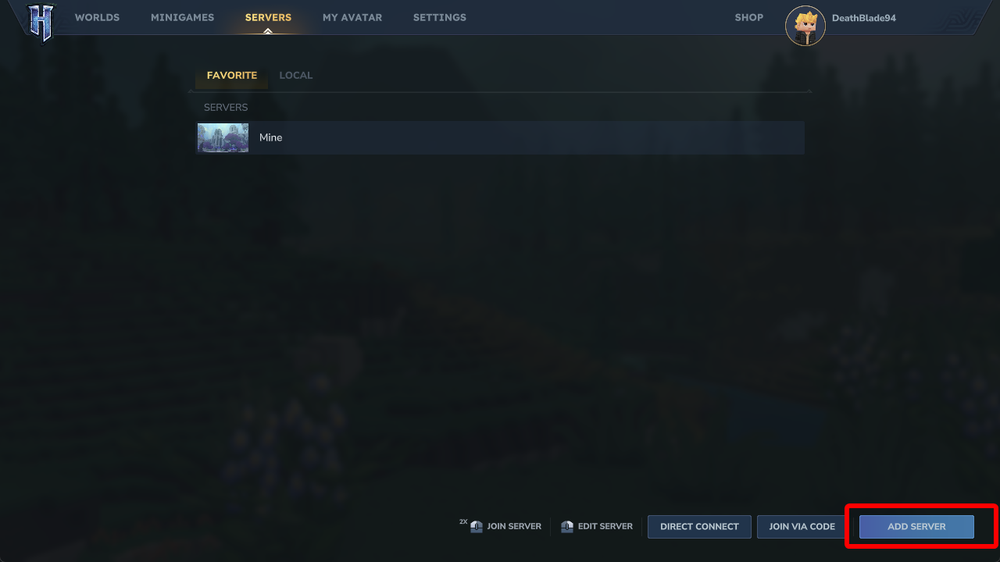
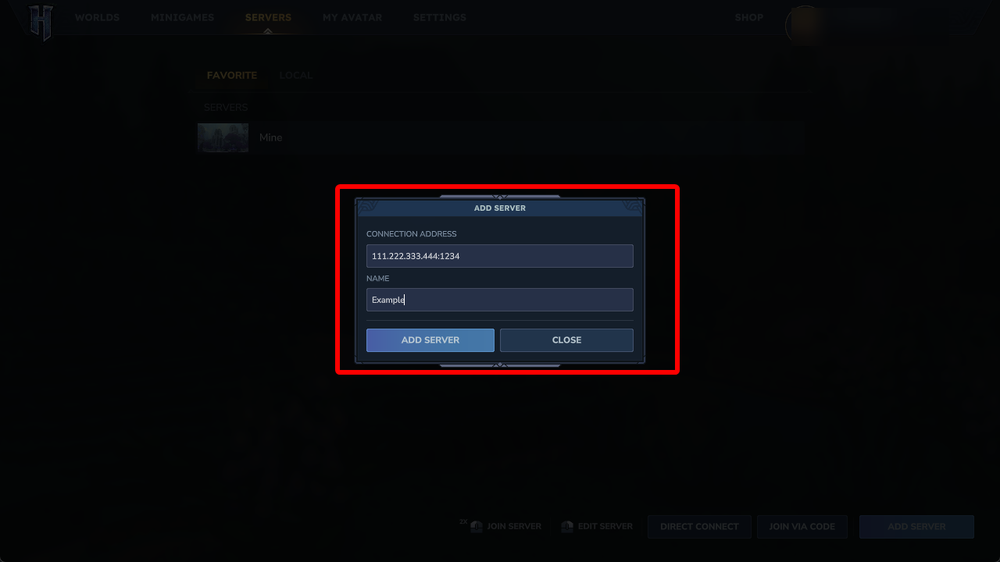
Click on ADD SERVER.
Enter the IP and port of your server, give it a name then click Add Server.
How to Join a Server on Your List
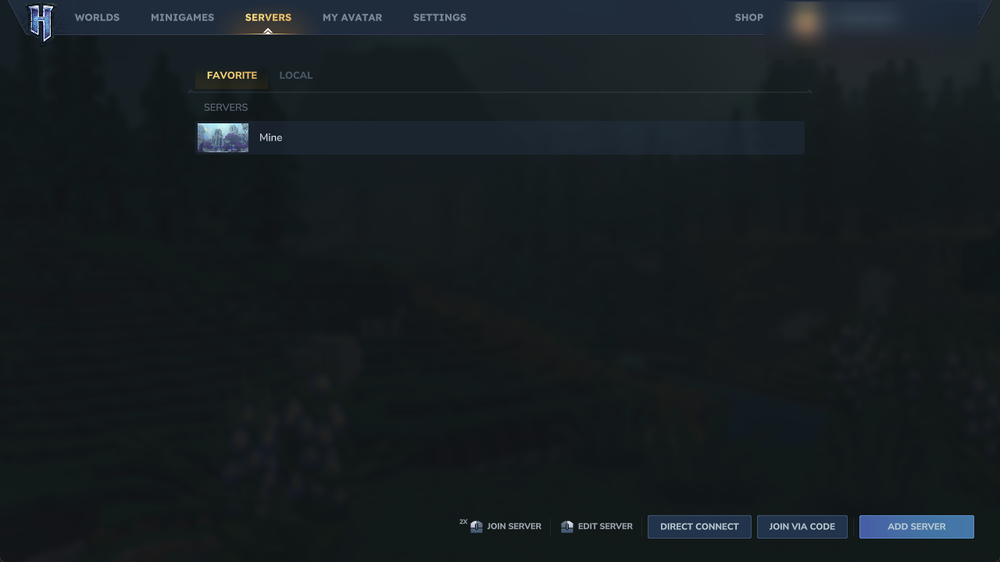
Once Hytale is open, click the Servers option.
Find the server on your list that you would like to join and just double click it to start joining.
How to Join a Server Without Adding it the List Using an IP:Port or Code
Once Hytale is open, click the Servers option.
Select Direct Connect or Join via Code.
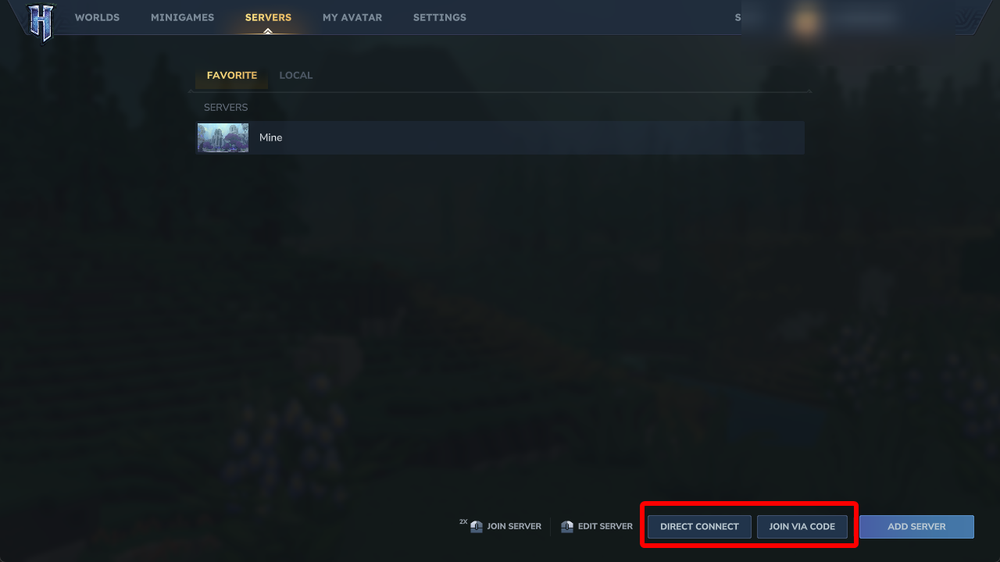
Depending on the option you are using, enter the IP:Port or Server Code then click Connect/Join.
How to Customize Your Avatar
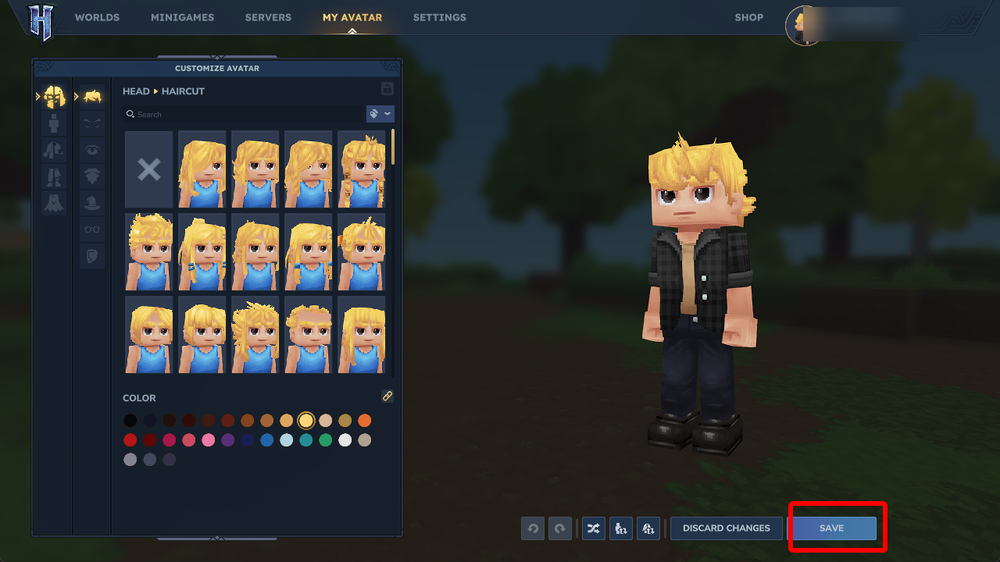
Click on the My Avatar option.

You can manually make changes with the many options, or you can randomize your whole avatar with that Randomize button at the bottom of the customization screen.
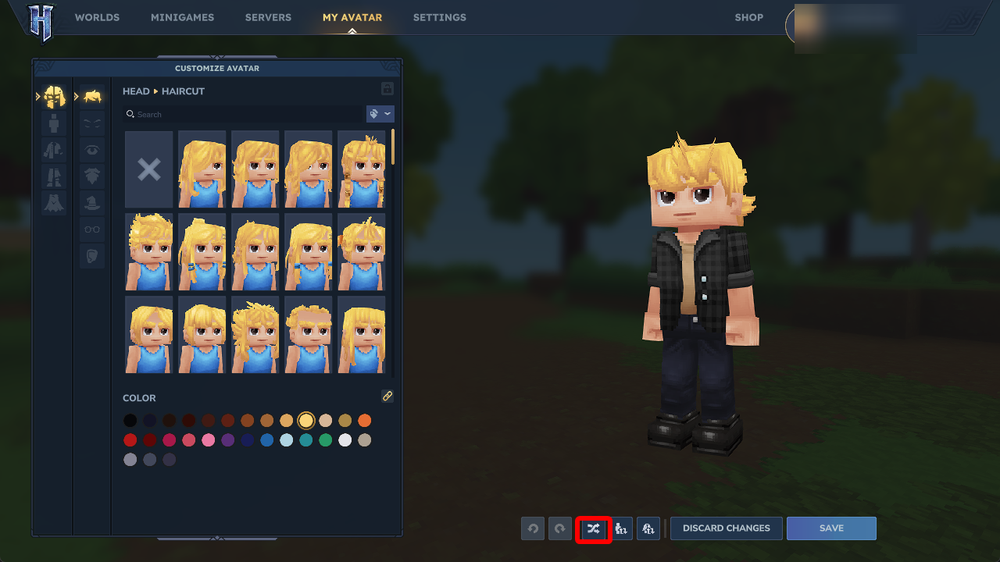
Once customizations are complete and you like your avatar, click on Save.
Note: For a more in-depth view of the Avatar system, check out our guide here: How to Customize Your Hytale Avatar
Conclusion
That covers the current options that are available on the Hytale launcher and in Hytale itself. There are some features such as minigames coming soon but as of this article those are not available in the early access of Hytale.
Need Help?
If you have questions or run into any issues, our support team is here to help! Reach out using the support widget on our website or visit our support center for further assistance.