


How to Change the View Distance for Your Hytale Server

In this guide we’ll be covering how you can increase the view distance for your Hytale server. The view distance is one largest factor for RAM/Memory consumption on your server. We recommend the view distance be set to 12 chucks which is the default for the best visuals and performance.
Changing the frequency
Open your Dashboard.
Locate your Hytale server and click on the Panel button.
Once on your panel, Stop the server using the button in the upper left corner of the panel before proceeding.
Once the server is stopped, click on Game Settings on the left-hand sidebar of the panel.
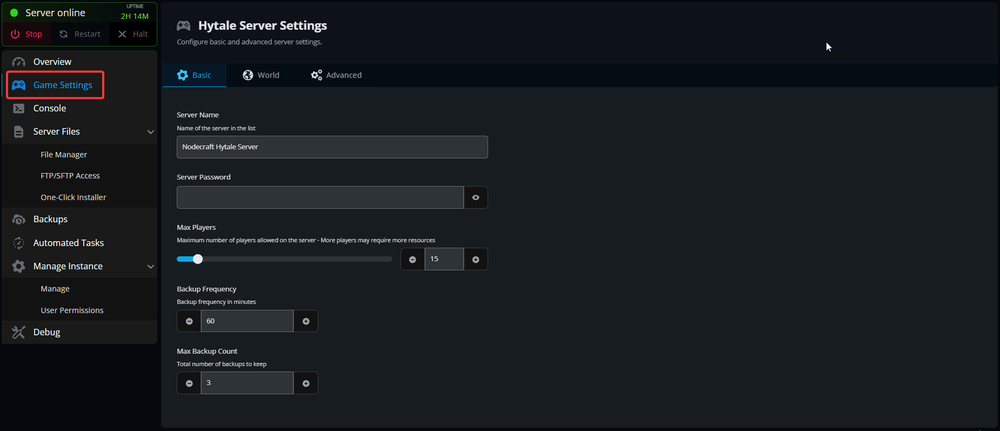
Once on the settings page you will want to click on the Advanced tab.
On the Advanced tab you will see View Distance Radius.

You can then use the slider, Enter or use the +/- buttons to set your desired View Distance Radius.
Once set, click Submit
Start your server.
You have now changed the View distance for your server!
Conclusion
You now have your server at your desired view distance. While this may improve visuals it can cause a large increase in how much RAM you may need for your server to have it run smoothly!
Need Help?
If you have questions or run into any issues, our support team is here to help! Reach out using the support widget on our website or visit our support center for further assistance.