


How to Access and Use the WukongMP Admin Panel

The WukongMP Admin Panel is a dedicated web interface used to manage your Black Myth: Wukong multiplayer server. While the Nodecraft Control Panel handles your server hardware and core files, the Admin Panel is where you manage in-game mods and player settings.
Locate Admin Panel Details
To find your specific login information, you must first navigate to the correct section within your Nodecraft dashboard:
Log in to your Dashboard.
Select your WukongMP server and click on the gear icon to access your server control panel.
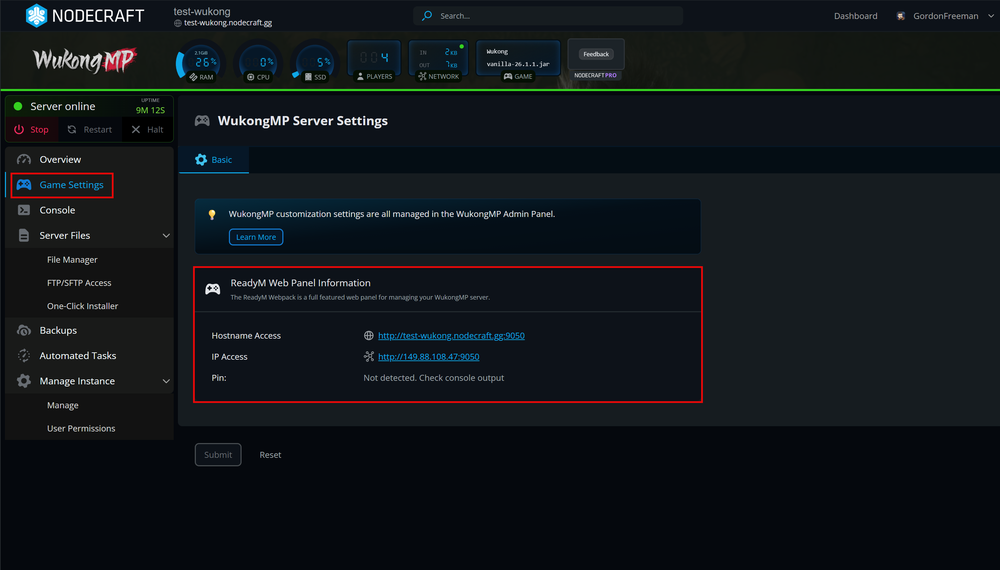
On the left-hand sidebar, click on Game Settings.
Look for the ReadyM Web Panel Information section.
Note: This section contains your Hostname Access URL and your IP Access URL.
Access the Admin Panel
Now it's time to set up the Admin Panel.
Note: The Admin Panel runs on a specific port and the default is 9050.
Click on either the Hostname Access or IP Access link from the Game Settings area of the control panel or from the Overview section under ReadyM Web Panel Information.
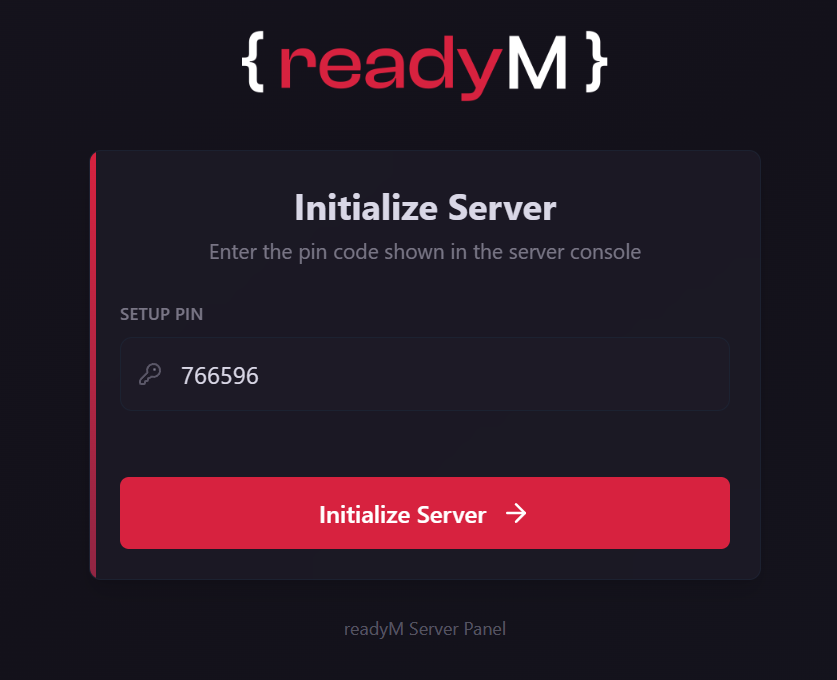
If this is your first-time setup, you will be prompted to enter a Setup PIN. Follow the steps below to retrieve that.
Click on the Console tab in the sidebar.
Look through the recent log output for a line that says:
[WRN] No admin users found. Admin setup PIN: ######Copy this 6-digit code and enter it into the ReadyM Admin Panel on the Initialize Server window.
Click the Initialize Server button.
Signing In
After the PIN is verified, you need to now link your ReadyM account:
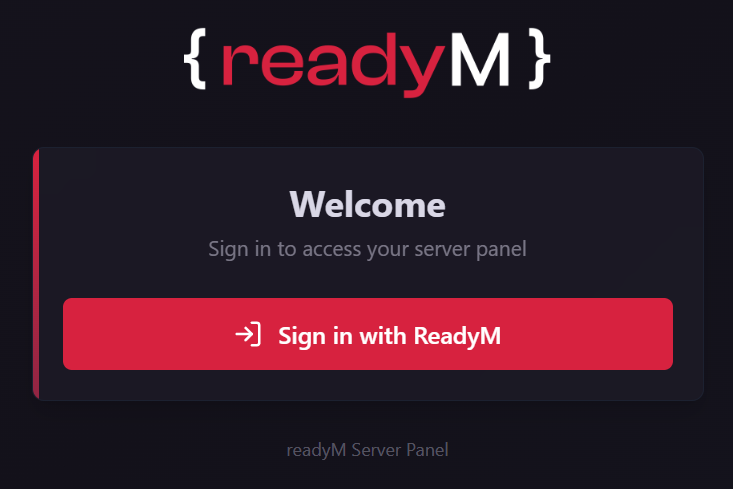
Clicking the Sign in with ReadyM will redirect you to the ReadyM authentication page.
Enter your credentials.
Once successful, you will be redirected back to the Admin Panel interface.
Note: If you do not already have a ReadyM account, you must create one to play WukongMP. You can create it on the ReadyM website.
Using the Admin Panel
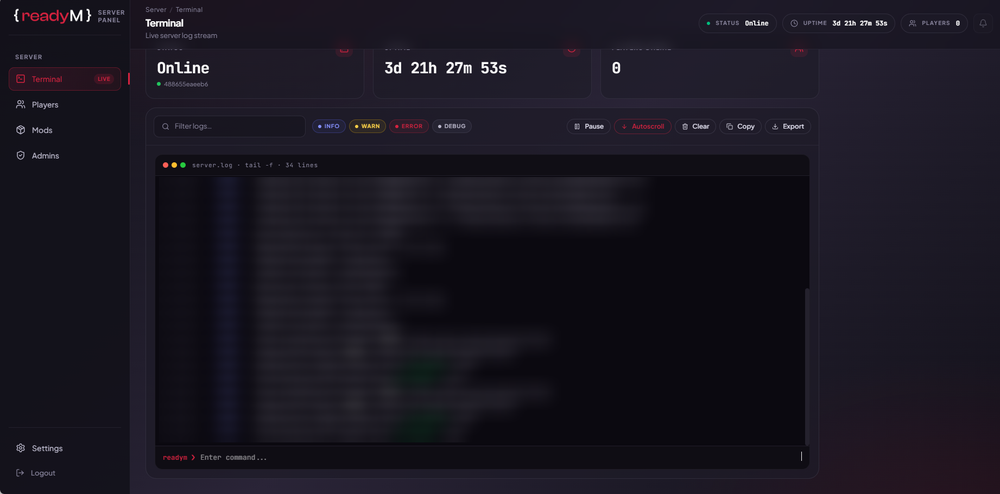
You are able to manage many different things through the Admin panel.
Terminal: View live server logs and execute commands,
Players: View previous and current players on your server, manage admins, and enable or disable the whitelist.
Mods: View currently install mods.
Admins: View and manage the server admins.
For more advanced configuration, refer to the official ReadyM Documentation.
Need Help?
If you have questions or run into any issues, our support team is here to help! Reach out using the support widget on our website or visit our support center for further assistance.