


How to Join a RuneScape: Dragonwilds Server

Here's a step-by-step guide on how to connect to your RuneScape: Dragonwild server using the in-game server browser. This game does not offer direct connect options with IP address or DNS Hostname at this time.
Connect via "Browse Games" Option
In the Nodecraft Control panel, navigate to game settings, and set a World Name. Copy this name to your clipboard or notate the exact name and case.
NOTE: this name can only be set BEFORE the server has been started for the first time.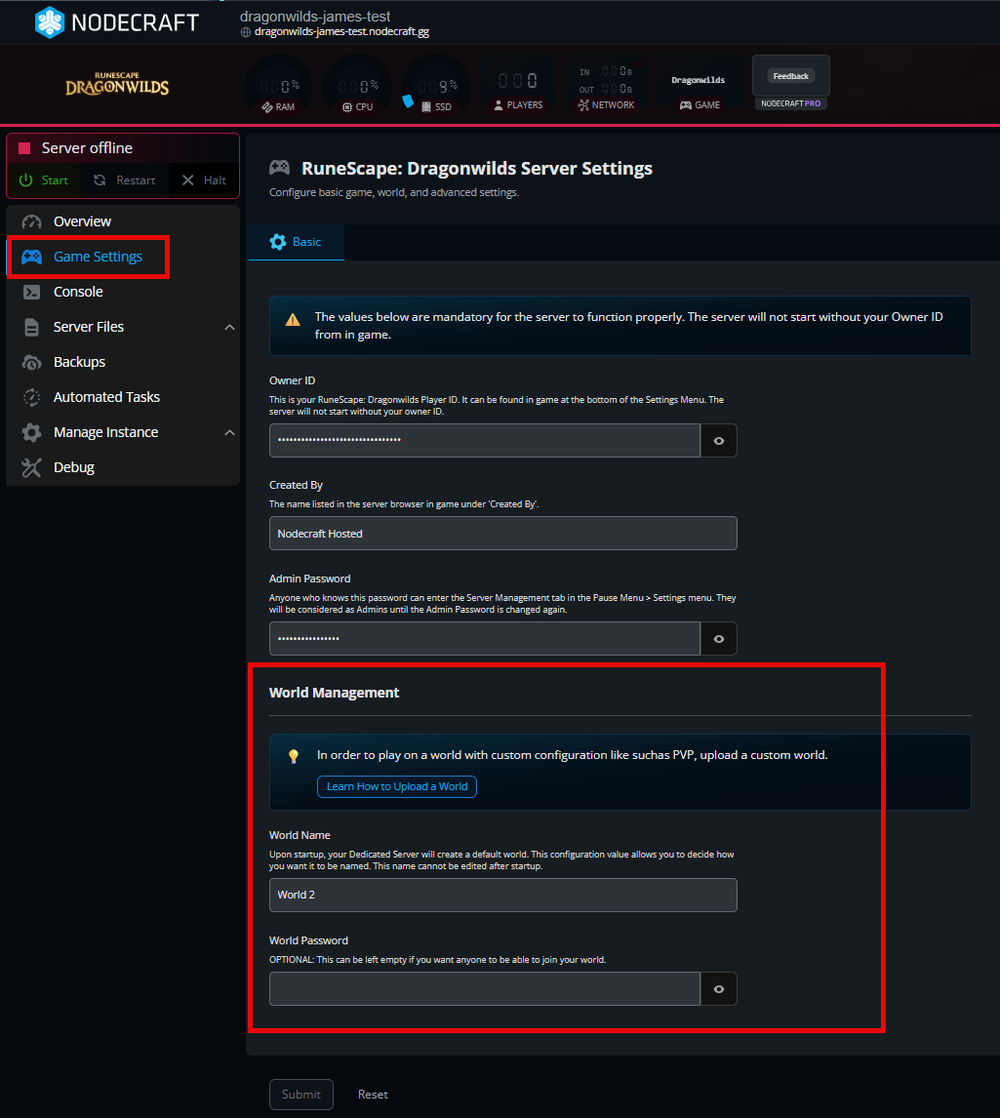
Launch RuneScape: Dragonwilds.
Click Play.
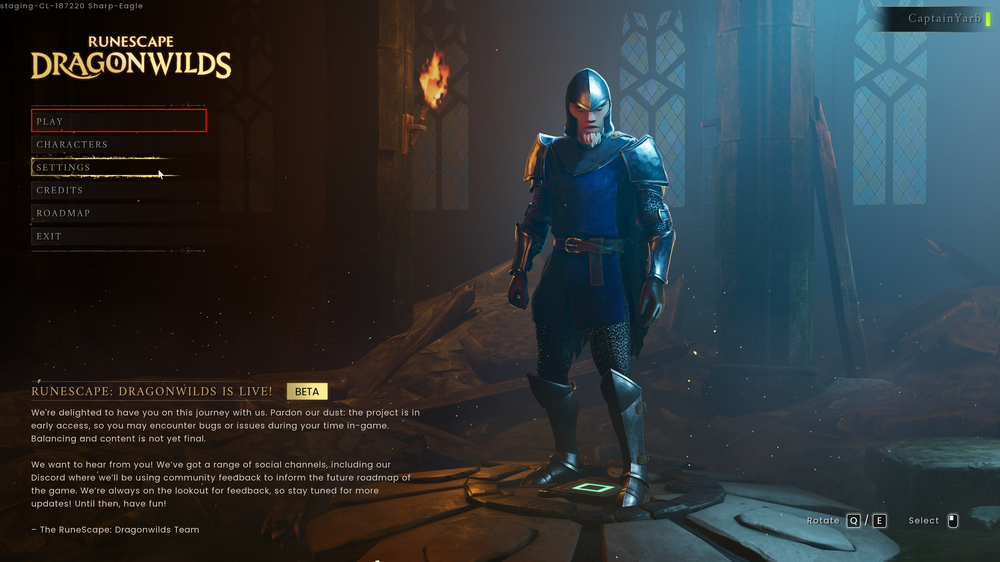
To find your dedicated server, go to the Public tab of the Worlds screen.
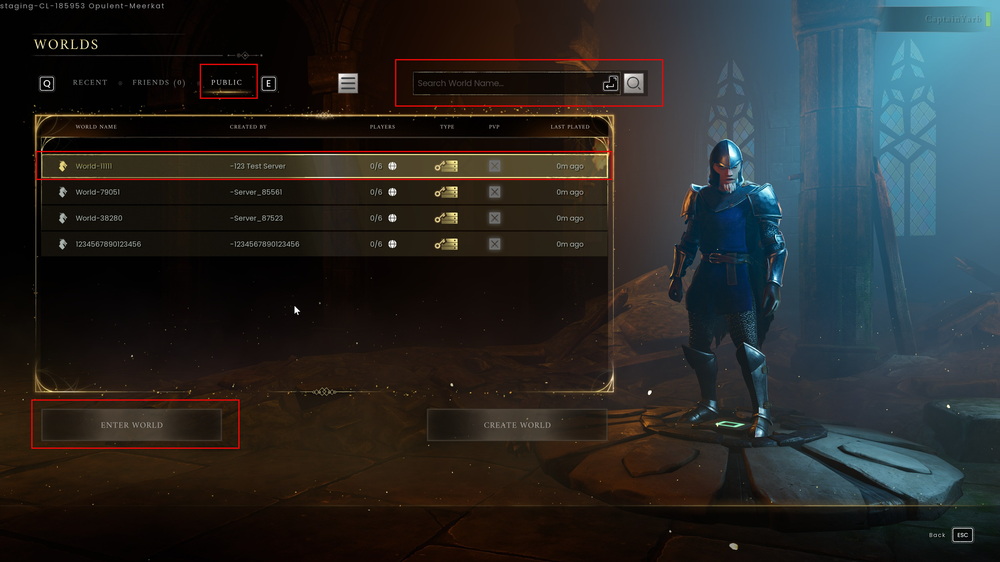
Then in the search tab, enter your exact World name, case sensitive.
After a few seconds, your server should appear.
Once you have found your dedicated server, just click on it and press "Enter World" to join.
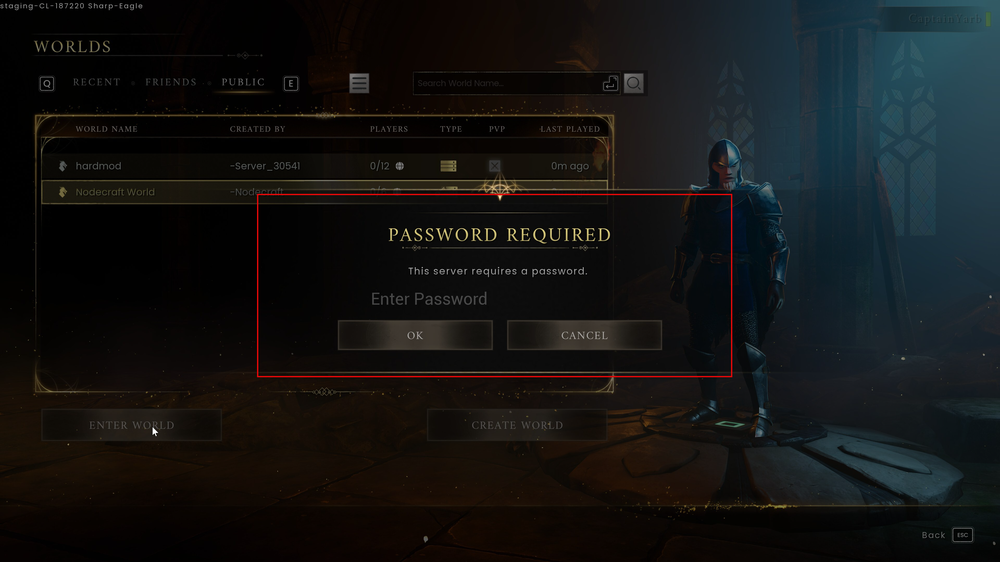
IF you set a World Password in your Nodecraft Control Panel or the server config file, enter it in the password popup and press OK.
Troubleshooting Tips
Ensure your server is running and displays 'Online' in green on the panel.
If you cannot find your server:
Make sure you set your OwnerID in the Nodecraft control panel.
Make sure your server and clients use the latest available version of the game.
Make sure that the world name you searched is the one your server is currently running. This search is case sensitive!
Make sure the mandatory config variables have been set.
Finally, look at the log - it should tell you how your server is doing.
Conclusion
Now that you know how to join your RuneScape: Dragonwilds server, check out our article on How to Set Yourself as Owner and How to Become Admin.
Need Help?
If you have questions or run into any issues, our support team is here to help! Reach out using the support widget on our website or visit our support center for further assistance.