


Troubleshooting: Server Not Appearing in RuneScape: Dragonwilds

Why is my server missing from the list?
It can be frustrating when your RuneScape: Dragonwilds server doesn't appear in the in-game browser. Usually, this is caused by a simple configuration sync issue or a specific search requirement.
Follow these steps to get your server visible:
Verify Server Status
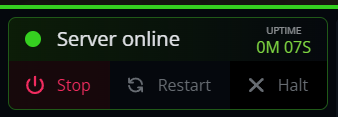
Before troubleshooting settings, ensure your server is fully booted. Check your Nodecraft Control Panel to confirm the status displays a green "Online" indicator.
Check the "Owner ID" Requirement
The game requires a valid OwnerID to broadcast the server correctly.
Navigate to your Nodecraft Control Panel.
Ensure the OwnerID variable is set correctly in your configuration settings.
Follow our guide if you need additional help: How to Become Owner of Your RuneScape: Dragonwilds Server.
Match Version Numbers
If your game client is updated but the server is running an older version (or vice versa), it may be hidden from the list. Ensure both your local game and the server are updated to the latest release.
Search Critically (Case Sensitivity)
The in-game search for RuneScape: Dragonwilds is case-sensitive.
If your server is named
MyDragonServer, searching formydragonserverwill return no results.Double-check your exact spelling and capitalization in the config.
Verify the World Save Name
The DefaultWorldName setting in your configuration only applies before a world is generated. If you change this setting later, it will not rename your existing world. To find the exact name you need to search for in-game:
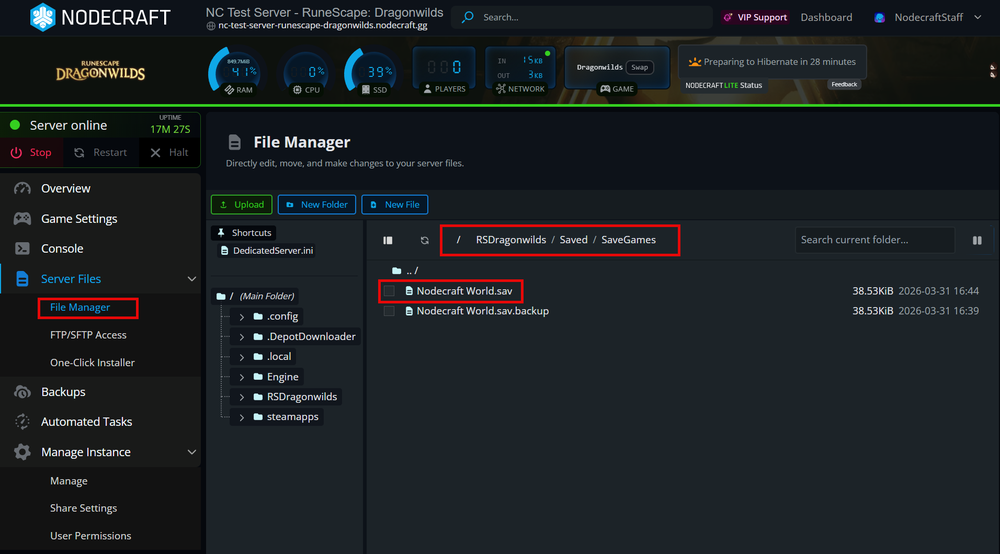
Navigate to your files: In the Nodecraft Control Panel, go to File Manager and open
RSDragonwilds/Saved/Savegames.Identify the .sav file: The name of your server in the server list will match the name of the file in this folder (excluding the .sav extension).
Example: If your file is named Nodecraft World.sav, you must search for "Nodecraft World" (remembering that search is case-sensitive).
The 16-Character Name Limit
The server list has a character limit for names. If your world name is longer than 16 characters, it may cause display and search issues.
The Fix: Shorten your server name to equal to or under 16 characters, or try searching using only the first 16 characters of the current name.
Review the Server Logs
If the steps above don't work, click on the console tab in your Nodecraft control panel. Look for any "Error" messages during the boot sequence.
Need Help?
If you have questions or run into any issues, our support team is here to help! Reach out using the support widget on our website or visit our support center for further assistance.