


How to Upload a Single Player World to a StarRupture Server

In this guide we are going to go over how you can upload an existing single player world to your StarRupture server. This can be done if you have a world that you were playing single player, a backup copy that you’d like to rollback to, or a world provided by another player.
Locating Your World and Preparing for Upload
Open a windows explorer window and navigate to the following location: C:\Program Files (x86)\Steam\userdata\XXXXXXX\1631270\remote\Saved\SaveGames
Note: The XXXXXXX will be replaced with your steam account id. In most cases if you navigate to C:\Program Files (x86)\Steam\userdata\ you will only have one folder which will be your account ID.
Once in your save folder you should see your world or worlds.
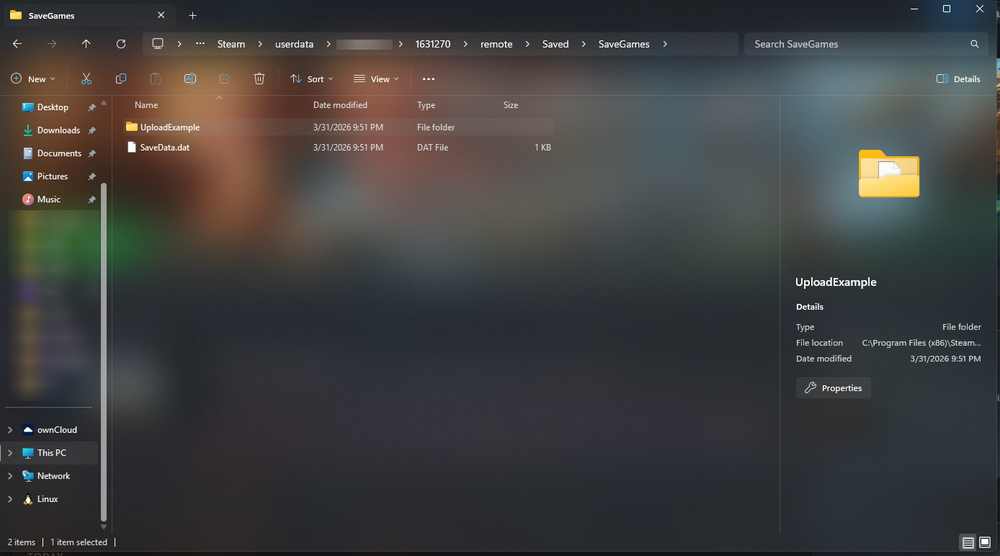
Find the folder of the world you want upload and right click on it and compress it to a zip file.
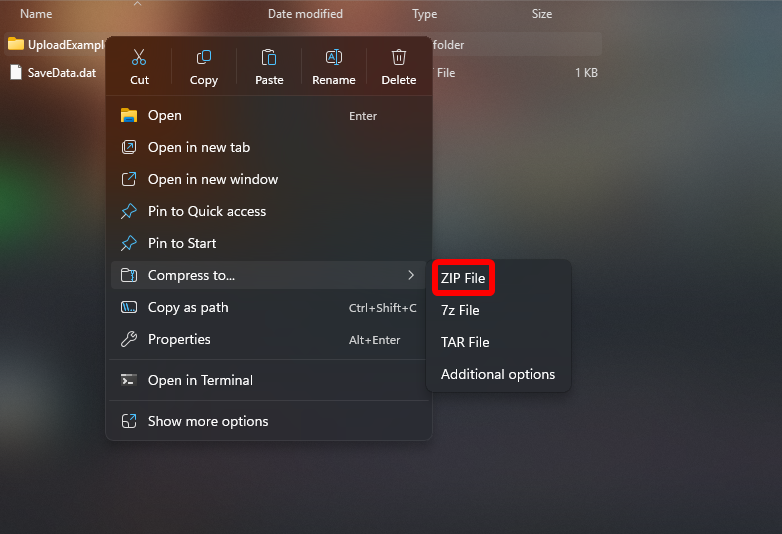
After a few seconds you will see a new zip file appear and be given the option to change the name if you’d like.
Your world is now ZIPed and is ready to be uploaded.
Uploading the world
Open your Dashboard.
Locate your StarRupture server and click on the Panel button.
Navigate to your File Manager.
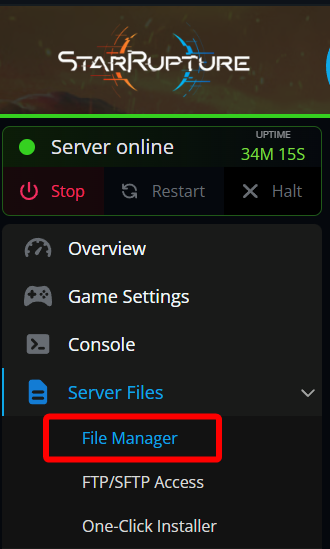
Once on the file manager navigate to StarRupture > Saved > SaveGames.
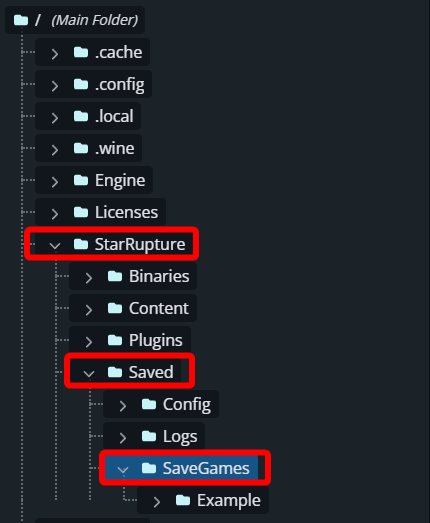
Once in the SaveGames folder you can upload the zip that you had created by dragging and dropping into the SaveGames folder.
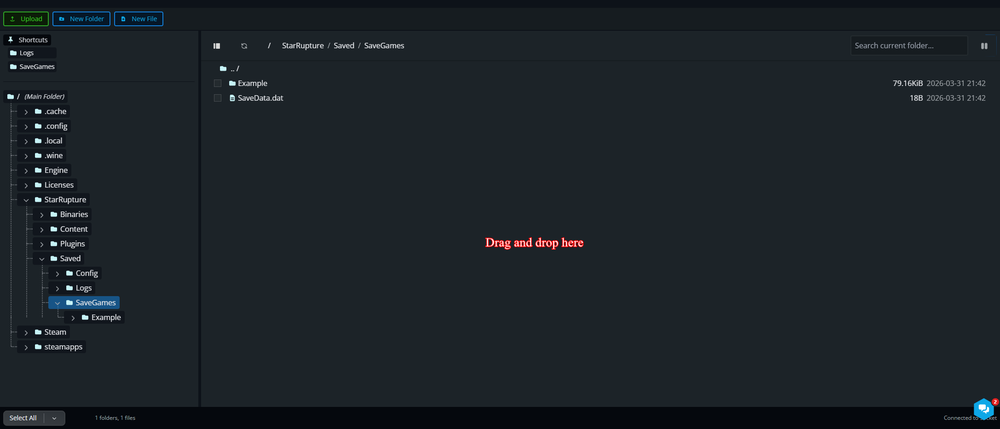
Once you see Successfully Uploaded, close the upload window.
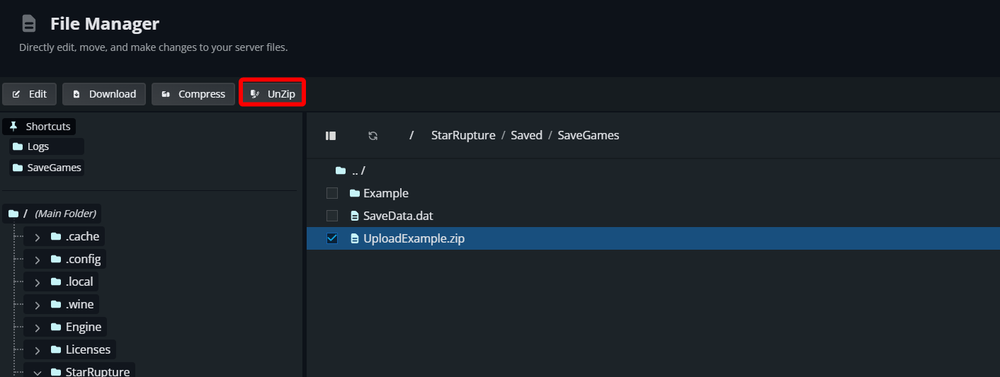
Select the ZIP file that was just uploaded and click UnZip.
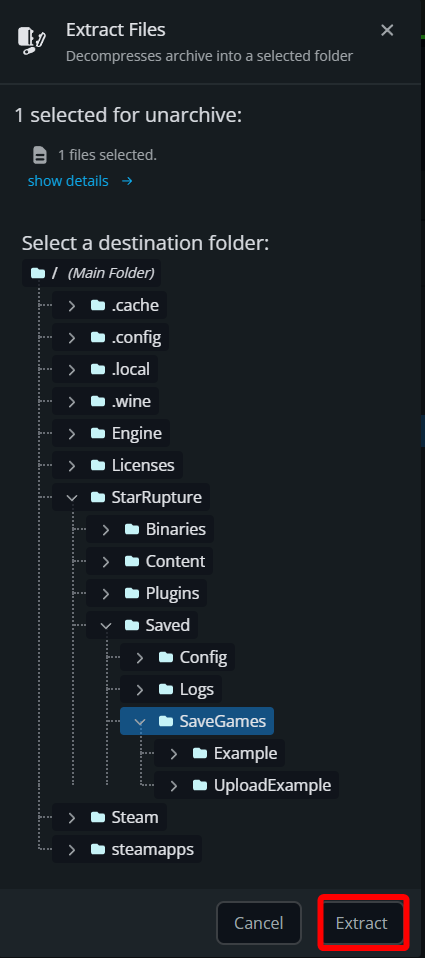
Make sure the SaveGames folder is selected and then click on Extract.
Once the world is extracted navigate to your Game Settings.
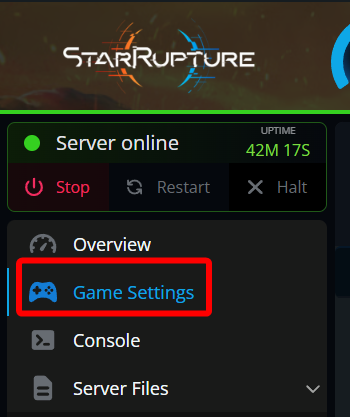
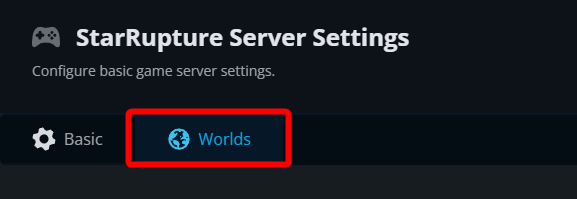
Next click on the Worlds tab.
Locate the world that matches the name of the the one you just uploaded, hover over it and click on Select.
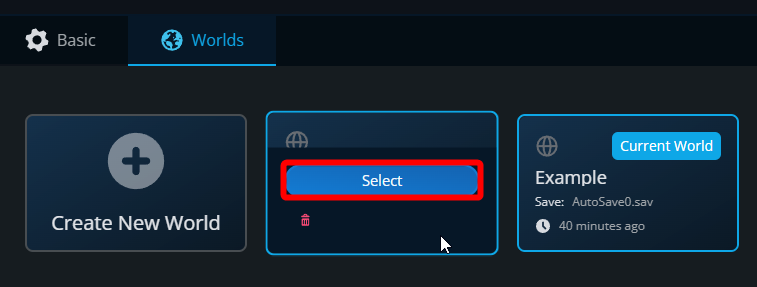
Once the server is selected you can start your server.
Conclusion
You have now uploaded a world to your StarRupture server. This process will be the same if you are uploading a single player world, a backup of a world or a world that was provided by another player.
Need Help?
If you have questions or run into any issues, our support team is here to help! Reach out using the support widget on our website or visit our support center for further assistance.