


How to Use the FTB Launcher

Originally known for large, quest-driven modpacks with a strong tech or progression focus, Feed the Beast (FTB) has become one of the most trusted names in the modded Minecraft space. The FTB Launcher is a custom Minecraft launcher designed specifically for playing modpacks developed by the FTB team. It handles all the downloads, mod installations, and setup automatically, so you don’t have to dig through folders or manage mods manually.
Downloading and Installing the FTB Launcher
Start by downloading the file for the FTB launcher. You can find this here: https://www.feed-the-beast.com/
Save this file somewhere you can easily access it, such as your downloads folder.
Double click the downloaded file and the launcher will be installed.
Once installed, you’ll need to add your Microsoft account. Click the Steve head in the bottom left corner, then click + Add Minecraft Account.
Follow the prompts to log into the Microsoft account where you own Minecraft.
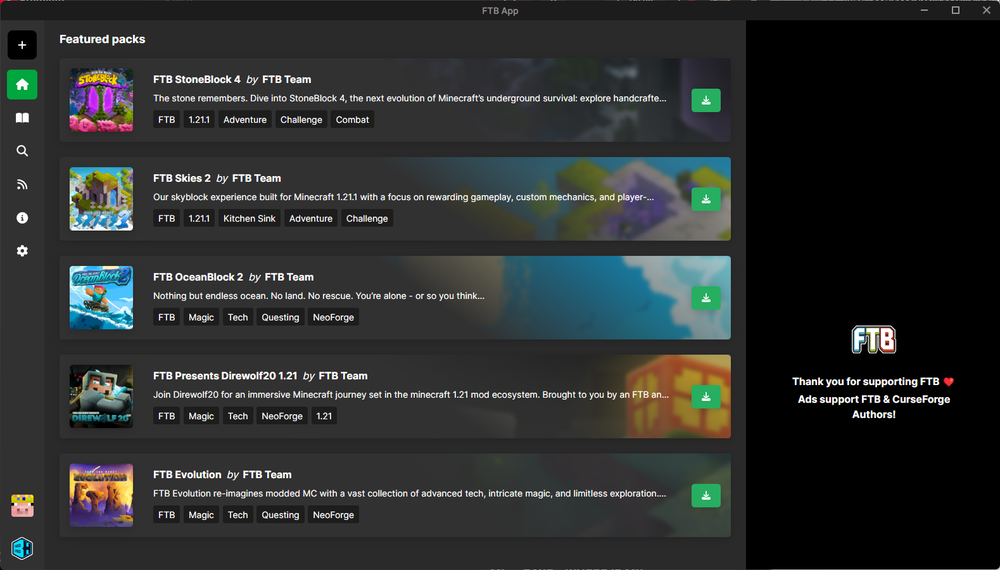
Once you’ve logged in, you’ll be taken to the Home tab where you’ll see a list of Featured packs created by the FTB team.
Switching over to the Library tab will show you a list of the modpacks you have installed with the launcher.
The News tab shows any announcements made by the Technic team. They are available to read right in the launcher, and a red dot will appear on the News tab when a new one has been posted.
Adjusting Launcher Settings
Launcher settings can be adjusted by clicking the gear icon on the left side of the launcher. Generally, you won’t need to change any of these, however, there are several settings that change how the launcher operates. Settings such as RAM allocation are set per modpack, so you won’t be setting that here.
Finding a Modpack
A few featured modpacks can be seen on the Home tab on the launcher, and your installed packs will be listed at the top.
To view all the modpacks available, click the Browse option on the left side of the launcher. The icon is a magnifying glass. By default, the list will show only FTB packs, which are sorted by which ones they’re featuring. You can use the search box at the top to search for a specific pack. Clicking the CurseForge button to the left of the search box will allow you to search for modpacks in the entire CurseForge database, not just FTB packs.
Installing a Modpack
Once you have found the modpack you want to install, click the green Install button, either from the list of packs or the modpack detail screen that opens when you click on a modpack.

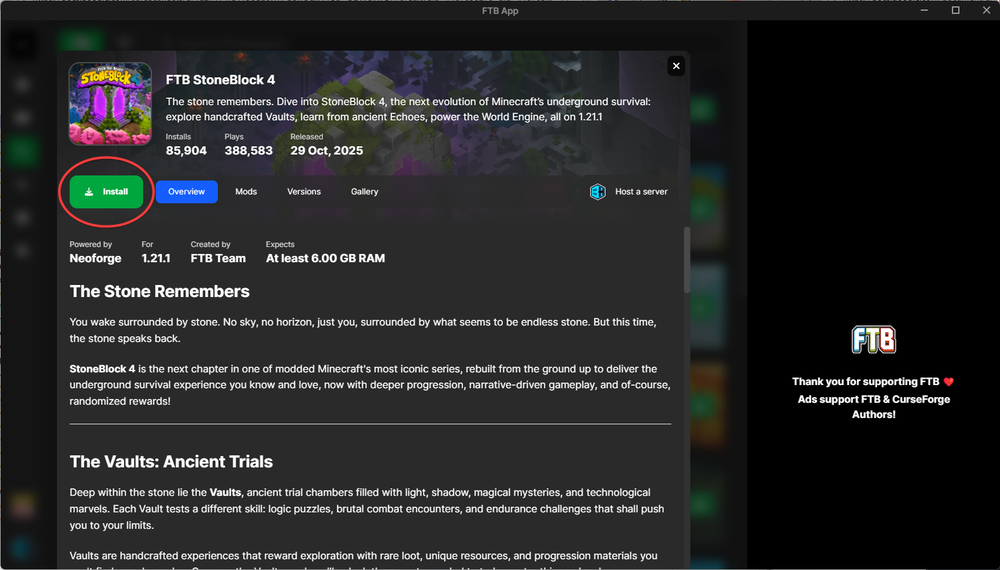
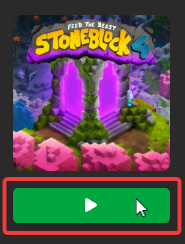
The launcher will then switch over to your Library and begin downloading the necessary mods and Forge version and install them. Once it’s complete, the modpack will have a play button when you mouse over it.
Changing Modpack Settings
Modpack settings can be accessed by right-clicking on the modpack and choosing Settings. Generally, most of these settings can be left alone, however, there are a few that need to be adjusted from time-to-time. The main ones are the Java Version and the RAM allocation.
Minecraft Java Version
The dropdown will show a list of all the versions of Java currently installed on your computer. This is important because older versions of Minecraft usually require using an older version of Java.
| Minecraft Version | Recommended Java Version |
|---|---|
| 1.5.2 and older | Java 6 |
| 1.6 to 1.7.10 | Java 7 |
| 1.8 to 1.11 | Java 8 |
| 1.12 to 1.16.4 | Java 11 |
| 1.16.5 | Java 16 |
| 1.17.1 to 1.19.2 | Java 17 |
| 1.20+ | Java 21 |
RAM Allocation
This setting controls how much RAM Minecraft will use. Modpacks require more RAM than vanilla Minecraft, and not allocating enough is the leading cause of poor performance. By default, this is set to 3072 MB, or 3 GB, which is the minimum recommended amount of RAM to run a modpack. Some modpacks require more, so if you notice your game periodically freezing and then returning to normal, this is a telltale sign that your client is running out of RAM and this setting should be increased.
Launching a Modpack
Now that the modpack is installed, it can be found in the Library tab on the launcher. To launch the modpack, mouse over it and click the green Play button.
Updating a Modpack
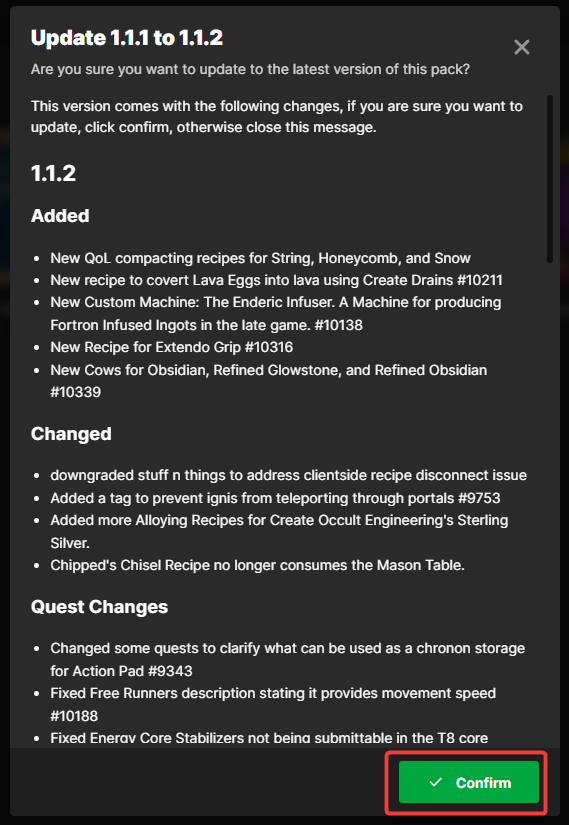
If an update to the modpack is available, an orange update button will appear next to the play button to let you know.
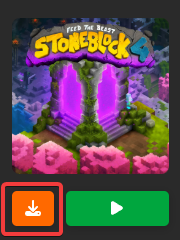
To update the modpack, click this button, then click Confirm.
Need Help?
If you have questions or run into any issues, our support team is here to help! Reach out using the support widget on our website or visit our support center for further assistance.