


How to Assign Slots and Move Avatars on Your VNyan Server

VNyanNet lets multiple VTubers collaborate in the same scene. Each participant is assigned a slot that determines their position in the world. This guide will show you how to assign slots and move avatars effectively.
Connect to VNyanNet
Open VNyan.
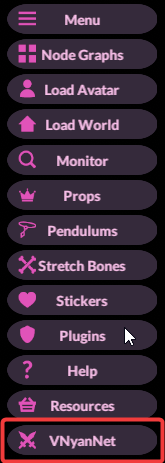
Click VNyanNet in the main menu.
Enter your Server Address, Server Password, Username, Lobby ID and Lobby Password.
Click Connect.
Note: By default, VNyan will automatically assign slots (1, 2, 3…) in order of who joins.
Access the Slot Menu
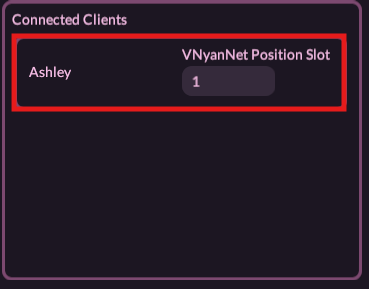
Once connected, open the VNyanNet Panel.
You’ll see a list of all connected participants and their assigned slots. Each slot corresponds to a specific world position (like stage left, center, or props near seats).
Assign or Change Slots
In the VNyanNet Panel, select the participant whose slot you want to change.
Select the Prop option from the menu options.
Select Import.
Locate the slot location in your directory: C:\\Users\\<username>\\Downloads\\vnyan\\Items\\Props
Navigate to the slot name: VNetPositionSlot1
Select that file to import.
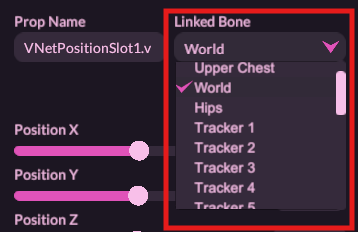
Use the drop-menu to select the linked bone, select World option.
Note: Hosts can reassign slots for other participants. Non-hosts can usually only change their own slot.
Move Other Avatars
You can also manually adjust your avatar’s position or others:
Open Position Settings in VNyan.
Use the move/rotate gizmo to place the avatar.
Select a slot number and click Save Current to store the position.
Later, you can Load Position to automatically move to that saved slot.
Note: This is useful for creating fixed seating or stage arrangements for collaborations.
 Tips & Notes
Slots = World Positions: Each slot has a predefined position, so moving an avatar means reassigning slots or saving a new slot position.
Host Powers: Hosts can override positions and force avatars into slots.
Custom Positions: Use props or empty objects in the scene to define exact positions for slots.
Consistency: Save positions if you want avatars to return to the same spots every time.
Troubleshooting
Avatar won’t move when slot is changed Check if you have host permissions or if the slot is already locked by another user.
Slots don’t match the scene Make sure your saved slot positions match your scene layout. Use props or guides to define positions.
Avatar disappears Disconnect and reconnect to VNyanNet; ensure the slot number exists in your scene.
Conclusion
Assigning slots and managing avatar positions in VNyanNet is essential for smooth multiplayer collaboration. By understanding how slots work, using the VNyanNet dialog to reassign positions, and saving custom locations, you can ensure that every participant appears exactly where they should in your scene!
Need Help?
If you have questions or run into any issues, our support team is here to help! Reach out using the support widget on our website or visit our support center for further assistance.