


How to Update a Windrose Server

In this guide we are going to go over how you can manually start an update on your Windrose server. Before proceeding it’s highly recommended to ensure you have a recent backup of your server.
Updating your Windrose server.
Open your Dashboard
Locate your Windrose server and click on the Panel button.
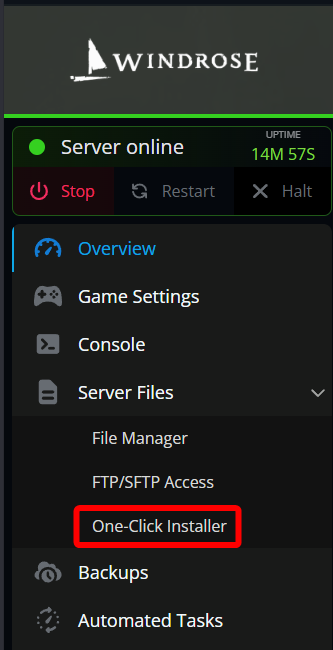
Once on your panel, Click on One-Click Installer under the server file section.
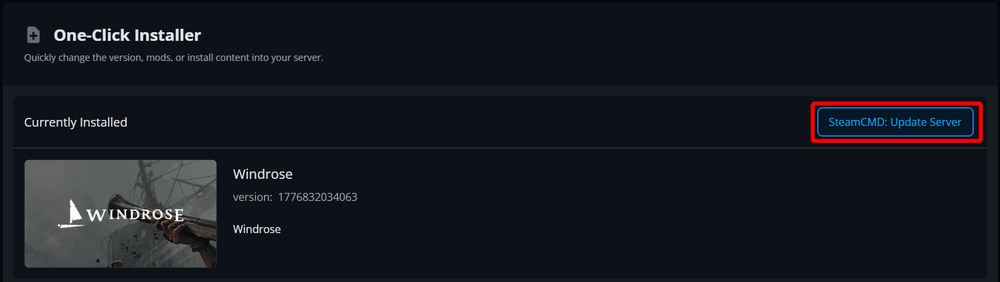
Once on the One-Click Installer page, click on the blue SteamCMD: Update Server button in the upper right corner.
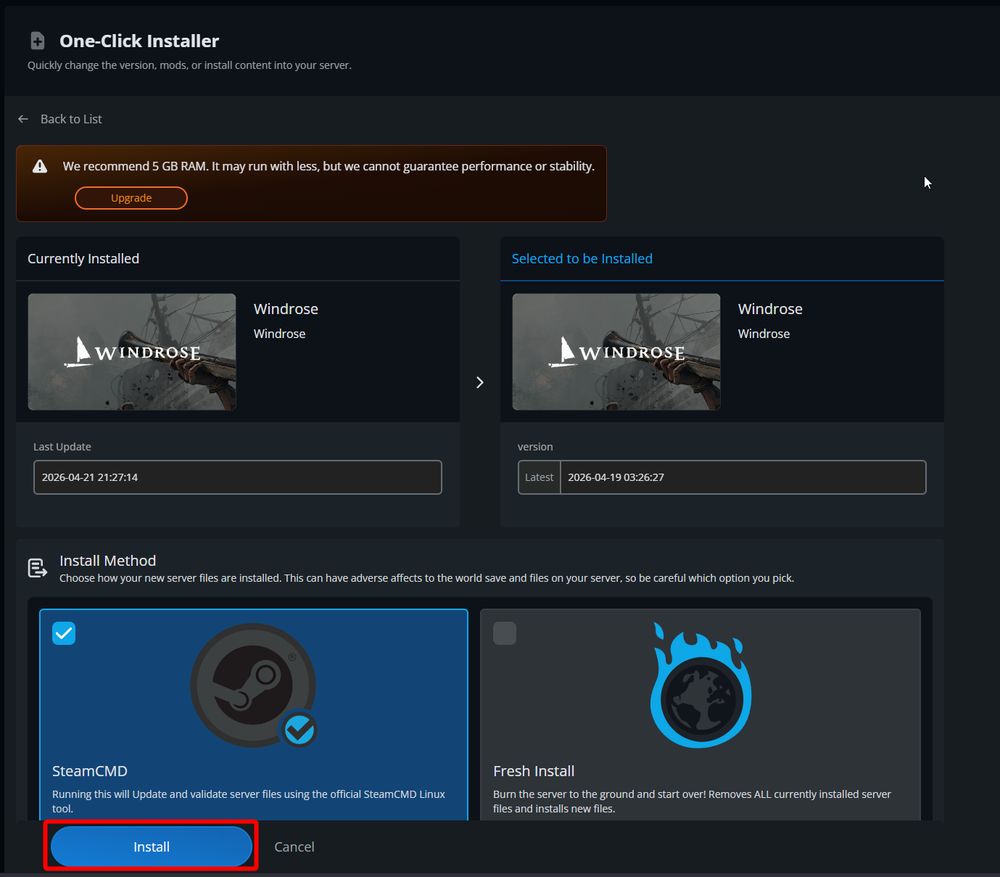
On the next page, you will see your currently installed version on the left, the updated version to be installed on the right. Under Install Method, ensure SteamCMD is selected or you will lose your servers data using the fresh install option without any sort of backup. Click on Install.
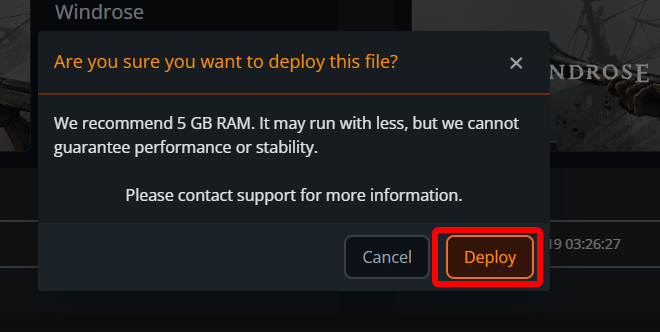
Note: If you do not meet the recommend RAM requirements you may be prompted with a second confirmation to Deploy the update, you can click on Deploy. It's important to note that performance cannot be guaranteed when using less than the recommended RAM.
Once you see the message File was successfully deployed or Windrose installed successfully you can return to your dashboard to Start your server.
Conclusion
You have now updated your Windrose server to the latest version. Before updating your server, it’s recommended that you ensure you have a recent backup just in case the update fails to install or has any bugs that could pose a risk to your server's progress.
Need Help?
If you have questions or run into any issues, our support team is here to help! Reach out using the support widget on our website or visit our support center for further assistance.