


How to Use an Interactive Map on a Windrose Server

In this guide we are going to cover how you can load the map from your Windrose server into a tool which will turn the world into an interactive map for you to use while you play on your server.
Downloading Your World
Open your Dashboard
Locate your Windrose server and click on the Panel button.
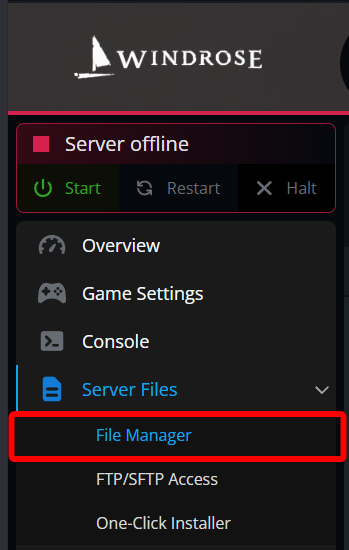
Once on your panel, open your File Manager.
Once on the file manager, navigate to: R5->Saved->SaveProfiles->Default->RocksDB->0.10.0->Worlds
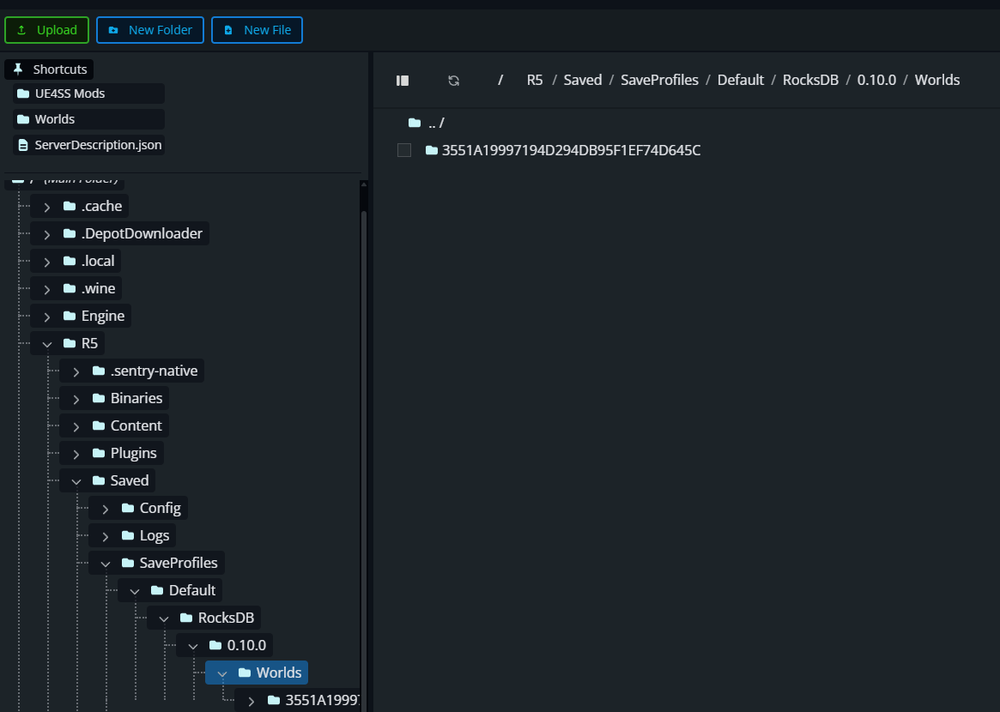
Note: 0.10.0 is the version number and may be different. You will use the folder with the highest numbers
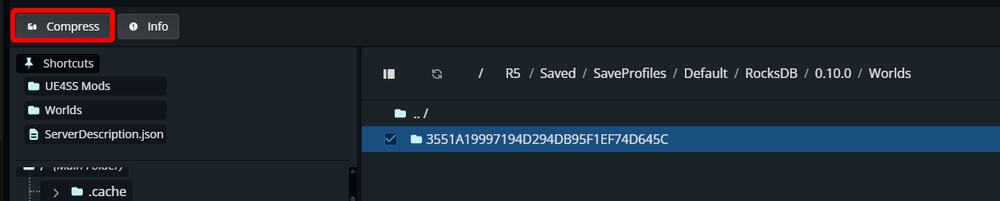
Click the checkbox next to your world then click on Compress, then Compress again in the window that pops up.
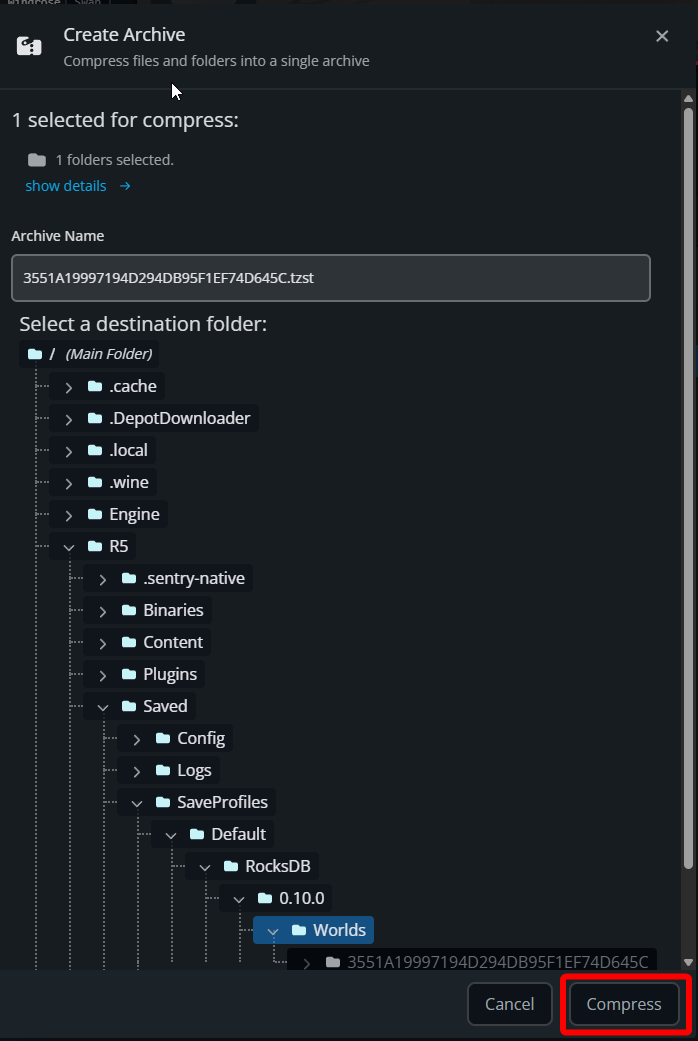
Once the folder is done compressing, check the box on the zip file and click on Download.

Once the zip is downloaded, extract it to a location on your computer where it’s easy to access.
Loading The Interactive Map
Navigate to the Interactive Map Tool here.
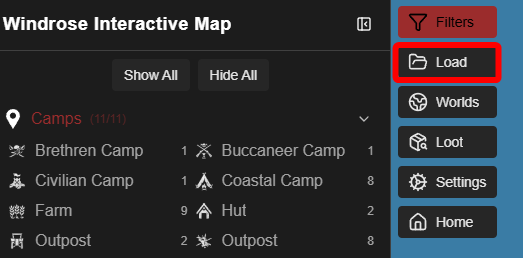
Once the webpage loads, click on Load.
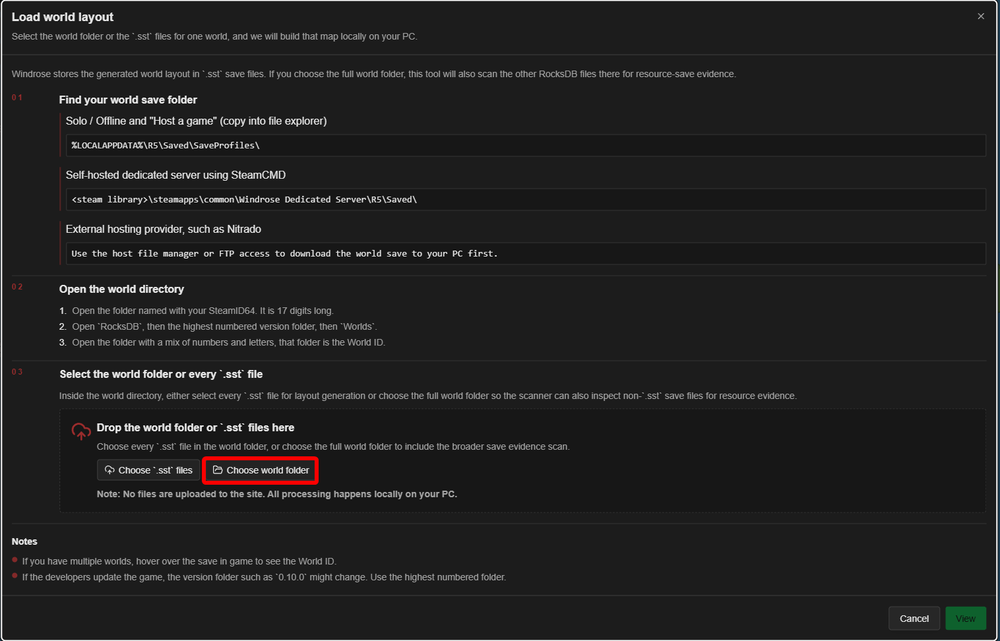
Once the Load world layout popup opens, click on Choose World Folder.
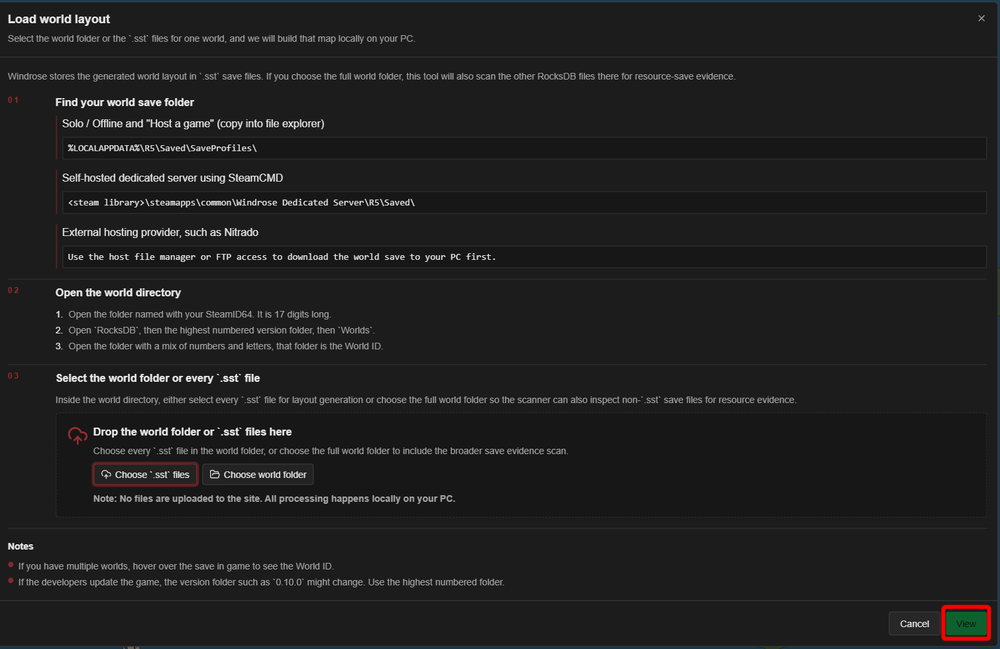
Select the location of your extracted world then click on View to start generating the interactive map.
Conclusion
You now have an interactive map for your Windrose server. You can now use it to keep track of key locations for quests, use it to build paths as you explore or plot out fast travel locations while you play on your Windrose server.
Need Help?
If you have questions or run into any issues, our support team is here to help! Reach out using the support widget on our website or visit our support center for further assistance.