


How to Set Up My Nodecraft Lite Server
Here’s everything you need to know about how to get the most out of your experience with your Nodecraft Lite server!
Set Up Your Lite Share Settings
Control your share settings in your Server Control Panel by navigating to Administration then Lite Settings.
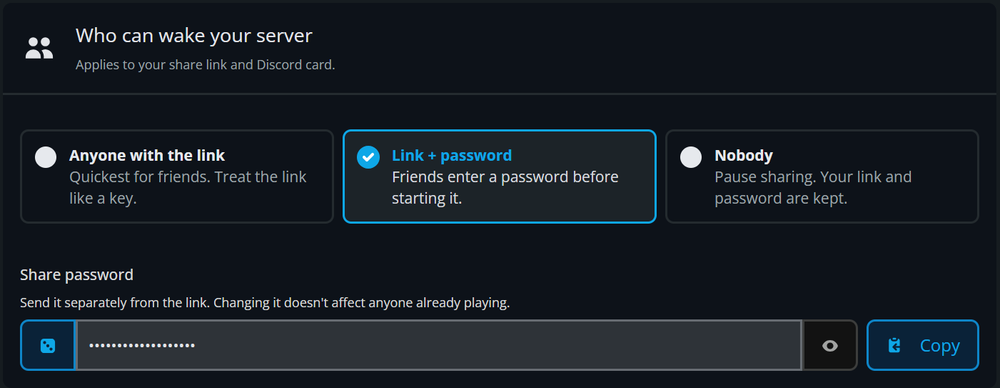
Who Can Wake Your Server
With Link + Password enabled by default, you may disable the password to allow anyone with the Share Link to start the server — no password required, or completely turn sharing off.
You can view and change this password at any time.
For security reasons, if you need to close the Share Link page to public access quickly, set this to Nobody.
Share Link
Grab this link and send it to your community who you want to:
Have the most up-to-date IP address and/or Hostname for joining. Note that the IP address will change each time the server hibernates, so this is the best way to keep your community up to date. If a game supports joining by Hostname, we always suggest using that instead, since it remains constant.
See the current status of the server.
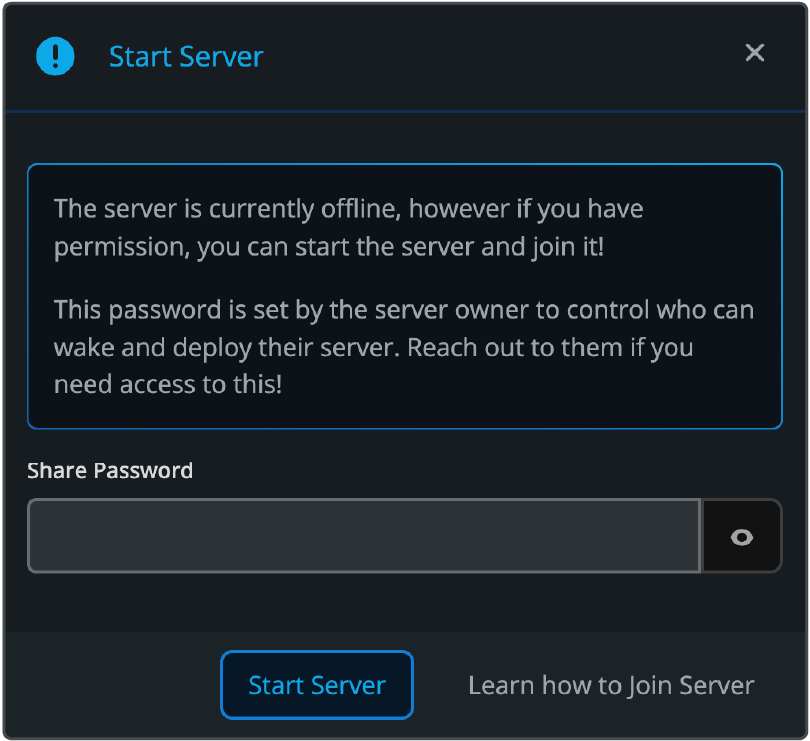
Be able to start the server if it is not online - don’t worry, this is locked behind a password by default.
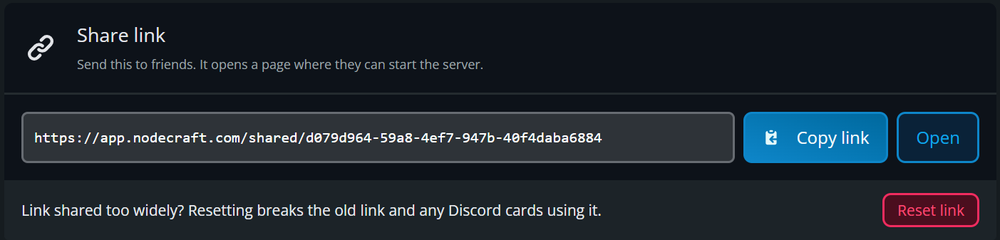
The Regenerate Share Link feature exists in case you ever need it for security reasons.
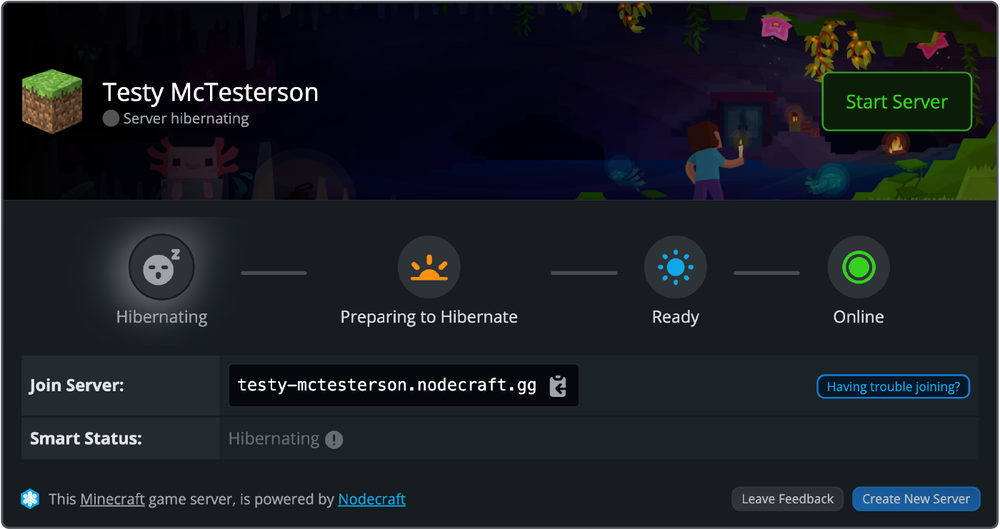
Visit the Share Link to access the website and take a look.
Wake from Discord
Add Nodecraft's Discord Bot to any Discord server where you want people to be able to turn your server on and grab the join address without leaving Discord.
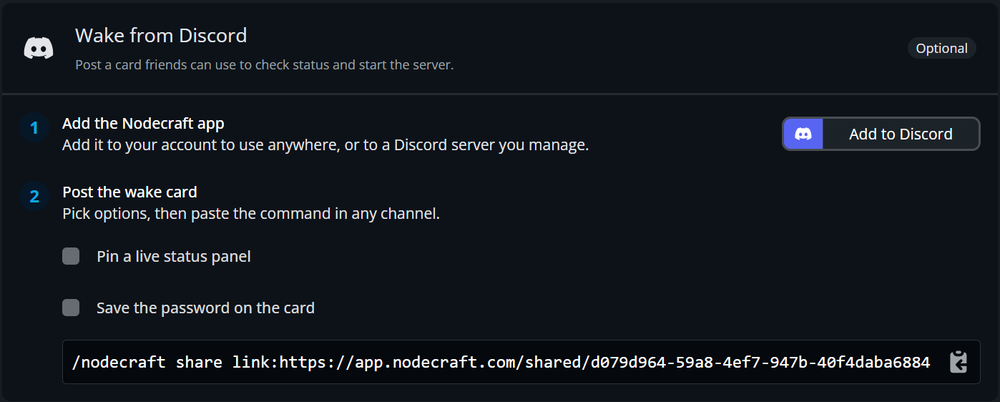
Post the wake card in a discord channel. You have a couple of options to set for this command before you copy it in Nodecraft's control panel:
Pin a live status panel: This creates a nice, permanent card in your discord server so that people can see the status of the server and turn it on in the future without having to rerun any Discord commands.
Save the password on the card: set this to true if you have a password set on the Lite Share link, but want it to be automatically applied in your Discord. WARNING: this will expose this password to anyone in your Discord server. Otherwise, make sure you give the password to anyone you want to be able to start the server from Discord or turn the password off completely.
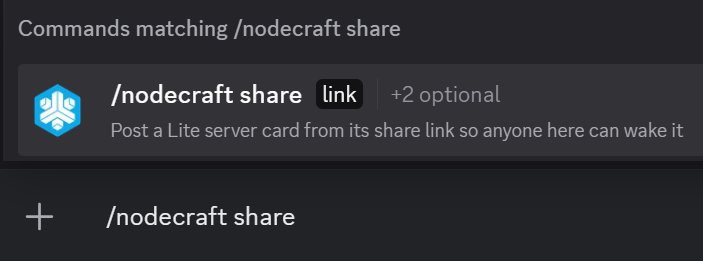 NOTE: The result will look like this if you chose "Pin a live status panel":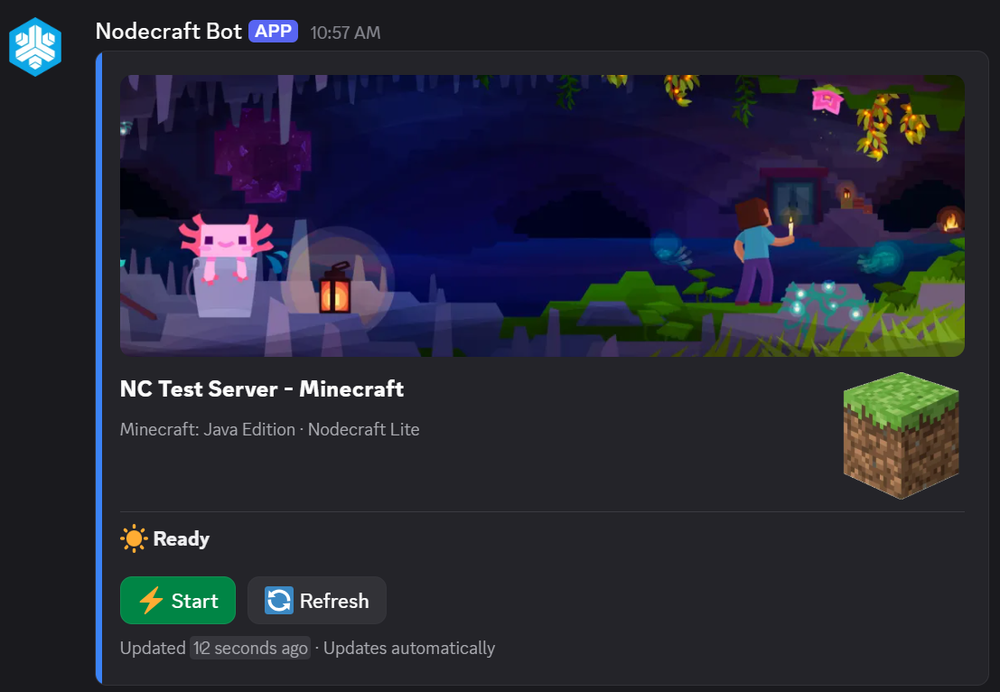
Share Page
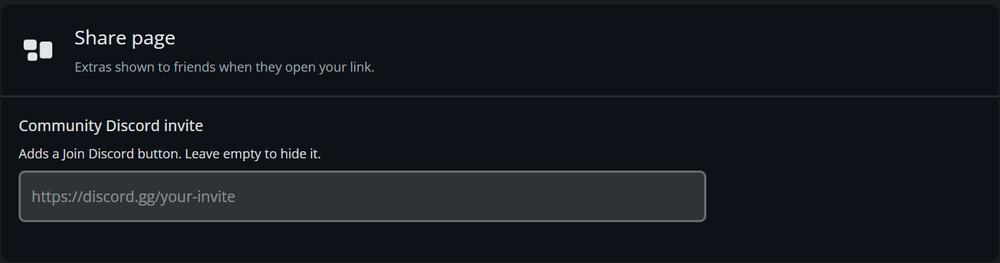
Discord URL: If you want the Share Link page to include your Discord URL, you can set that up here.
For Steam games only: Auto Update on Start
This setting is located in Administration/Lite Settings.
This will enable the server to automatically update when someone starts your server from the Share Link. There are risks associated with this setting, so please read the warning above.

Review Your Share Link
Now that you’ve set up your Share Link page, take a look at it to see what your community will see. If you have the password enabled, they will have to enter it when they press “Start Server”.
Learn About Lite's Hibernation
Nodecraft Lite is a unique product. We offer budget prices for premium products by enabling servers to hibernate when not in use. If you want to understand how hibernation works and how to turn your server back on when it's time to play, read our article: When Does my Nodecraft Lite Server Shut Down?
Is Share Link Available on Nodecraft Pro Premium Servers?
At this time, this feature is only available for Nodecraft Lite servers. However, for both, server owners can still provide access to anyone they want to manage their server through our server permissions feature, which requires a Nodecraft login. Send them this link: How to Add Sub-Users to an Instance.
Need Help?
If you have questions or run into any issues, our support team is here to help! Reach out using the support widget on our website or visit our support center for further assistance.