


How to Delete a Multiverse World on a Minecraft Server

Sometimes a world has run its course. Maybe it was a testing map, an old event world, or a chaotic experiment that got wildly out of hand. Whatever the reason, cleaning up unused worlds is part of keeping your Minecraft server organized and running smoothly.
Multiverse makes it easy to manage multiple worlds, including removing the ones you no longer need. Just remember that deleting a world removes its files permanently, so backups are your safety net if you change your mind later.
In this guide, we’ll walk through the simple process of deleting a world from Multiverse using either the console or in-game commands.
Deleting a World
Open your Dashboard.
Locate your Minecraft server and click on the Panel button.
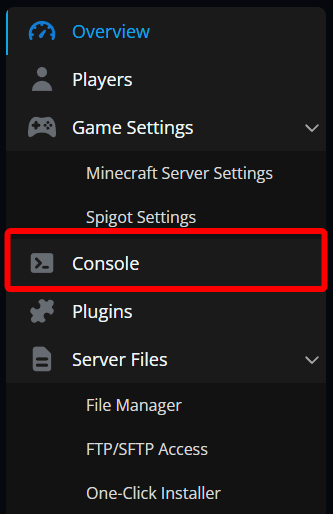
Once on your Minecraft server panel, click on the Console tab.
Note: Alternatively, this can be done in-game with OP or the proper permissions.
Run the command /mv delete (world name).

Note: If you need a list of worlds in case you don't remember the name type "mv list" into the console (without the " ")
Once you issue the command you will be prompted to confirm the action which must be completed within 30 seconds of the initial delete command being issued. This is done with /mv confirm (number). The number will be given to you when you start the delete process. Once confirmed the world will be fully removed from your server.

Conclusion
And just like that, the world is gone.
The confirmation step exists for a reason, so take a second to double-check the world name before you commit. If there’s even a small chance you’ll want that world back, make a backup first. If not, clear the space and move forward. New worlds, new ideas, fewer abandoned test maps lurking in your file list (maybe).
Need Help?
If you have questions or run into any issues, our support team is here to help! Reach out using the support widget on our website or visit our support center for further assistance.