


How to Join Your VNyan Server

Collaborating with other VTubers just got a whole lot easier. VNyanNet allows you to connect multiple VNyan setups together so friends can appear directly inside your 3D environment during a collab stream. This guide walks through exactly how to connect to your VNyanNet server hosted through Nodecraft so you can get into your collab without any troubles along the way.
Gathering Information
Navigate to your VNyan Server’s dashboard.
Locate your server’s IP address or hostname on the Overview page.
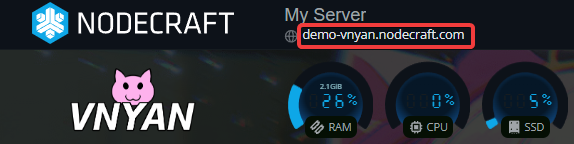
You’ll also need the password. By default, the password is “password”. If you’d like to update this, follow our guide here.
Set this information to the side as you’ll need it in a moment!
Connecting to the Server
Open VNyan on your computer.
Click on VNyanNet on the right side of the application.
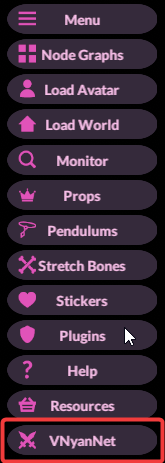
In the Server Address box, type in your server's IP address or hostname.
In the Server Password box, type the default password or the password that you’ve set.
Click the Create New Lobby box.
Enter in a Lobby Password. This can be whatever you’d like it to be, such as 12345.
Click the Connect button.
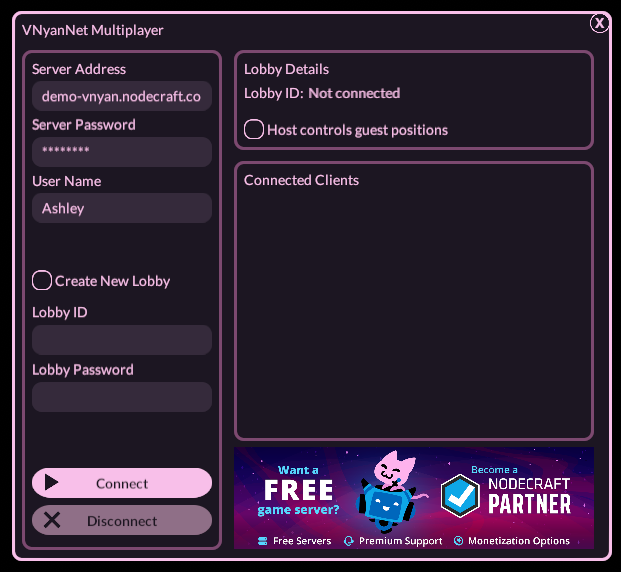
Once successfully connected, the Lobby ID will be available on the right under Lobby Details. When you see this, you’ve connected successfully!
Now all you need is friends to share this with! If you need help on inviting your friends, we have a guide that can assist.
Once you see the lobby details appear, your connection is successful, and the server is ready to use. Share the Lobby ID with your friends so they can join your VNyanNet session and appear directly in your setup. If you need to make changes later, such as updating the server password or restarting the server, you can do so from your Nodecraft dashboard. From here, you’re all set!
Need Help?
If you have questions or run into any issues, our support team is here to help! Reach out using the support widget on our website or visit our support center for further assistance.