


How to Join a s&box Server

Ready to play? This guide covers the two quickest ways to join your s&box dedicated server: using the in-game server browser or connecting directly via the console.
Connect via the In-Game Server Browser
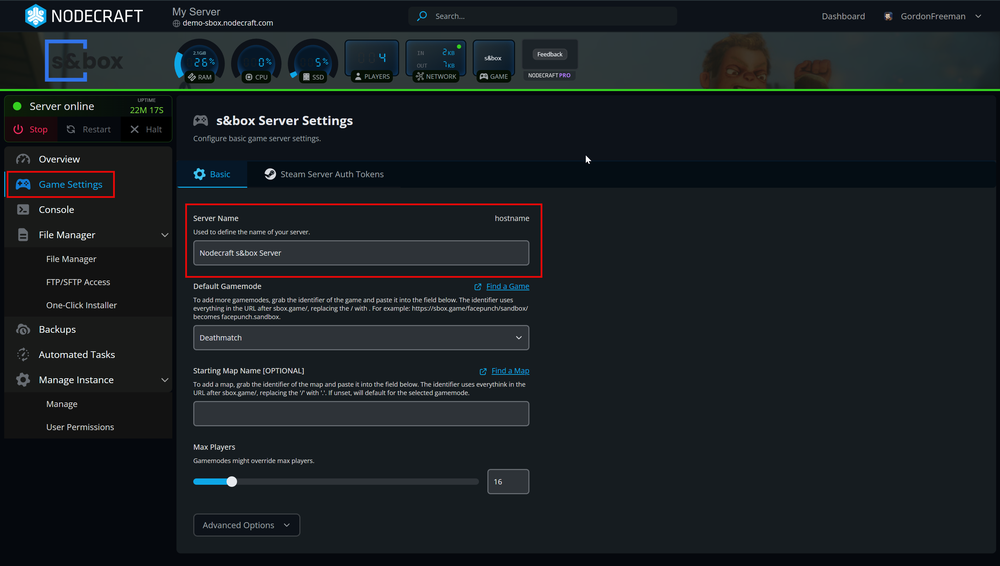
Ensure your server is online, and you've given it a recognisable name in the configuration settings.
Launch s&box.
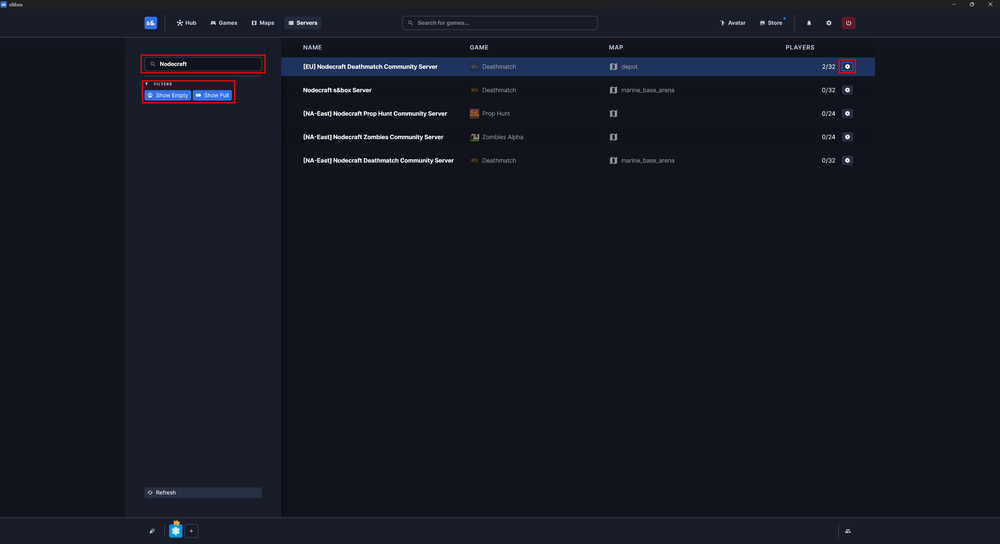
Click Servers.
Enter your server name into the Search bar on the left, NOT the search on the top which is to filter the list to a specific game.
Click on the filters "Show Empty" and "Show Full" if needed.
Join your server by clicking on the icon to the right of it's name.
Connect via the In-Game Console
Log in to your Nodecraft dashboard.
Navigate to your s&box server.
Open the s&box server control panel.
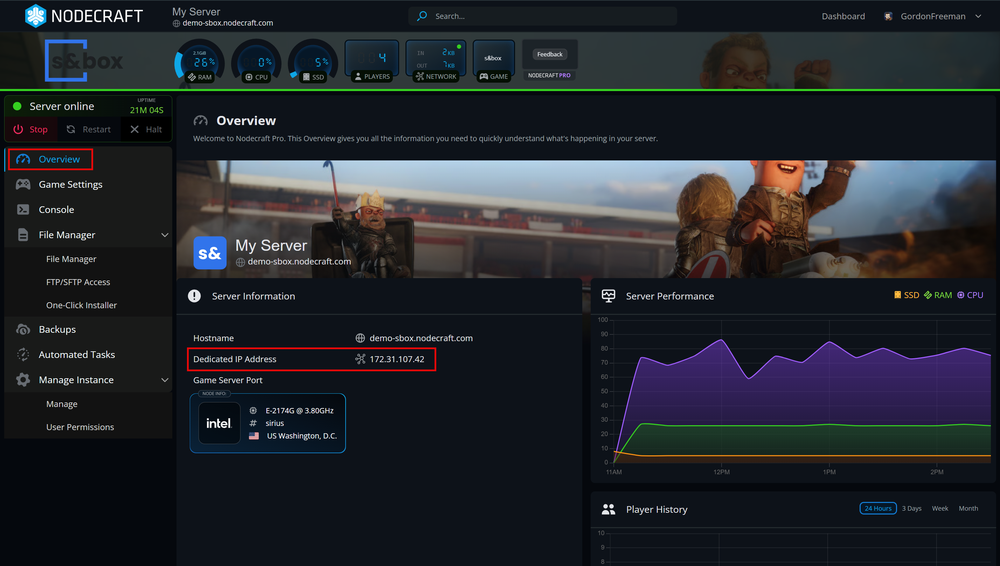
In the Overview section, locate the Numeric IP in the Server Information block.
Copy the IP to paste into the game next.
Launch s&box.
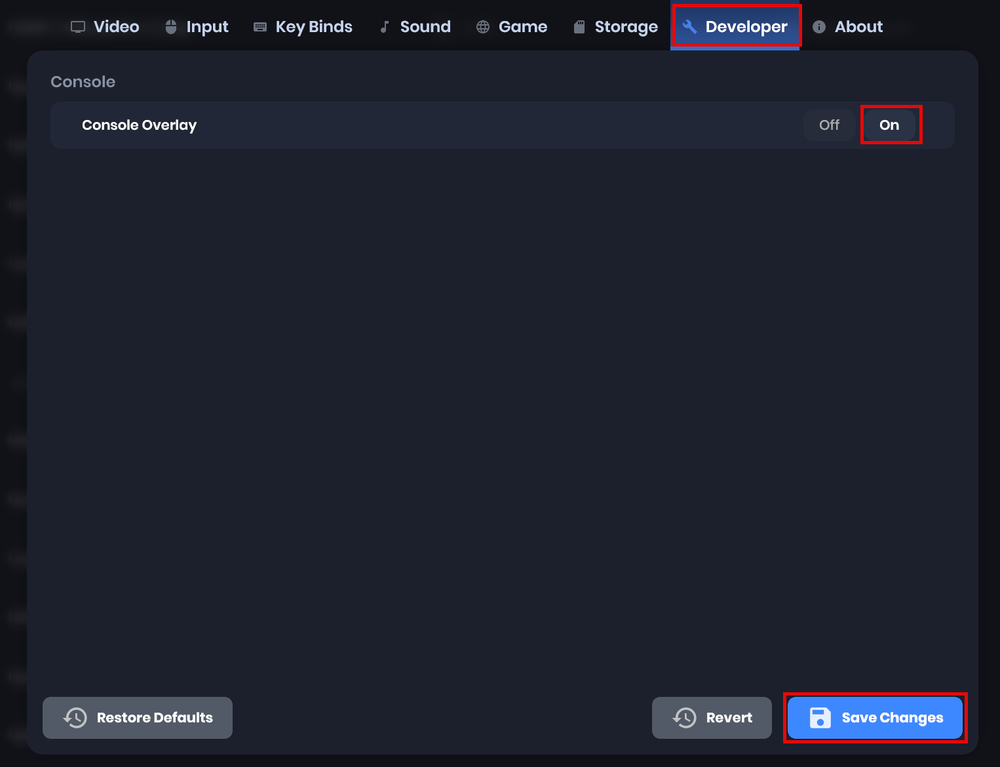
Press the Grave
`key (usually located to the left of your 1 key) to open the console overlay.Note: If the console overlaydoesn't open when pressing the ` key, ensure the Console Overlay is enabled in the s&box keyboard settings.
Type
connect [Your-IP-Address]and press Enter.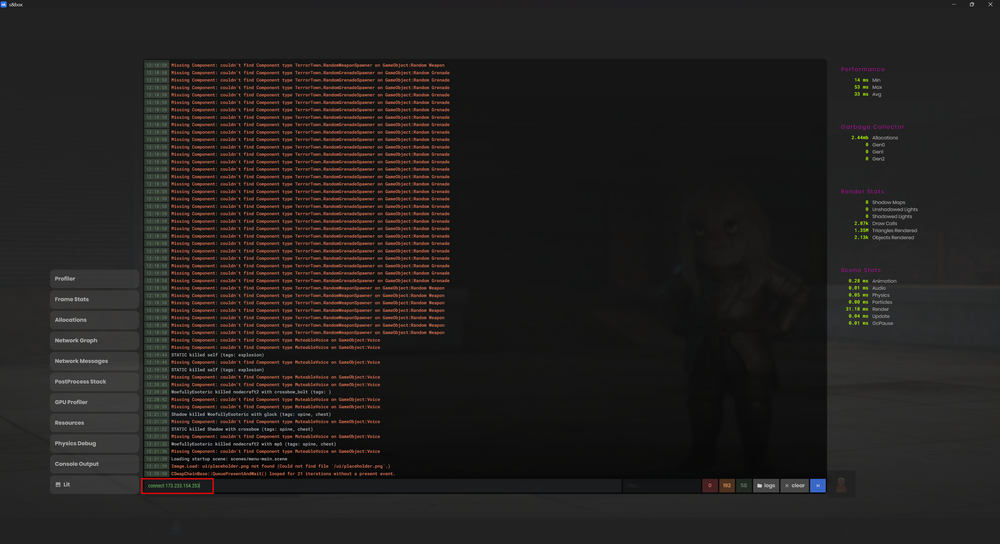
Click Enter.
Troubleshooting Tips
Ensure your server is running and displays 'Online' in green on the panel.
Conclusion
Now that you've learned how to join your server, have fun playing.
Need Help?
If you have questions or run into any issues, our support team is here to help! Reach out using the support widget on our website or visit our support center for further assistance.