


How To Download A World To Single Player

This guide will cover the process of saving a Hytale server world for use on single player. This can be useful for many reasons such as just wanting to keep a local backup, play offline or if you want to share your world with others without the need for a server.
Downloading A World.
Open your Dashboard
Locate your Hytale server and click on the Panel button.
Stop your server then navigate to the File Manager.

Once on your file manager, you'll need to select at least 3 files for the downloaded world to work: mods, universe, permissions.json

Once the files are checked, right click on one of the checked files/folders and click on Compress. You can give the archine a special name if use the pre-filled name then click Compress.


Once done return to the / Main folder then locate your newly created archive. You can right click on the archive and click on Download.

Loading a Downloaded World in Single player.
Navigate to your Hytale User folder
WIndows: C:\Users\<User>\AppData\Roaming\Hytale\UserData (179)
MacOS: /Users/<user>/Library/Application Support/Hytale/UserData (180)
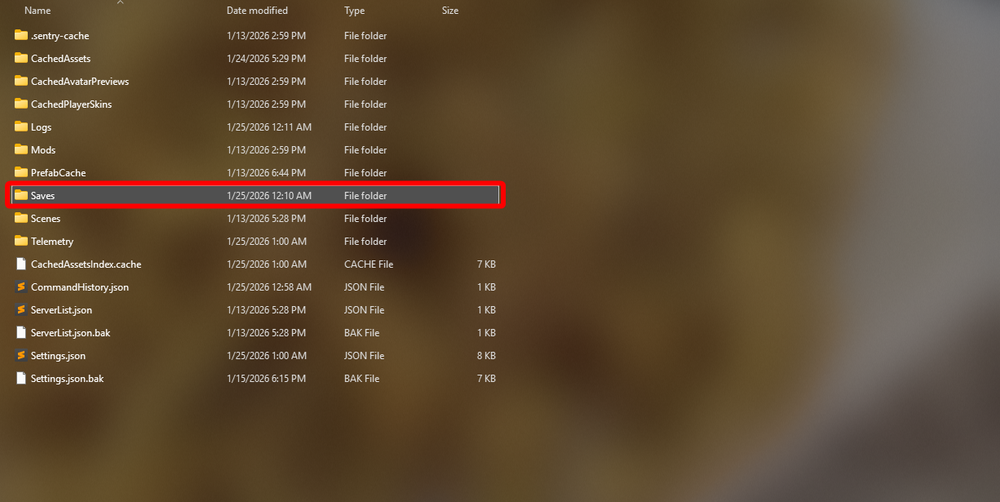
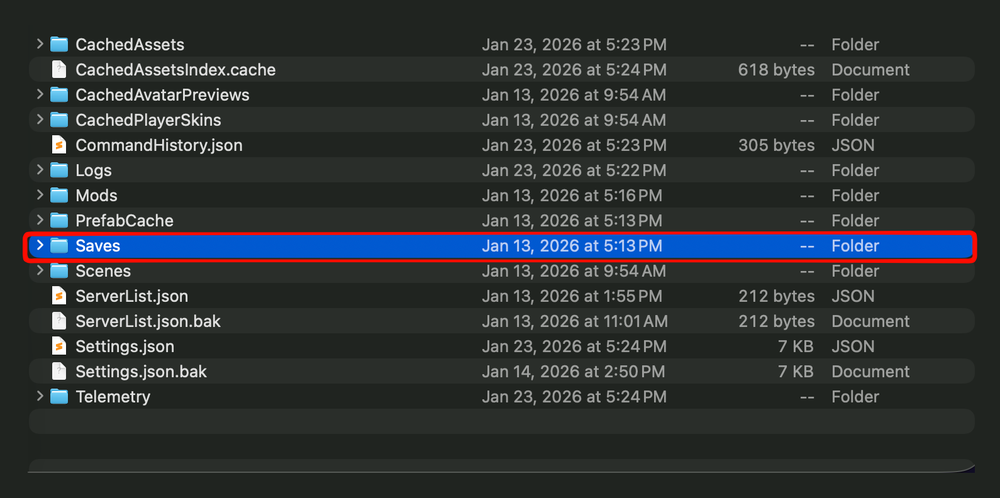
Open the Saves folder.
Create a new folder with any name that you’d like then open the new empty folder.
Extract the archive that you downloaded from your server into the empty folder and it sure it looks as follows.


Open Hytale, click on Worlds and you should see a world that matches the name of the new folder you created.

Conclusion
You now have a full copy of your Hytale server world ready for single player use. This makes it easy to keep reliable backups, continue building offline, or share your world with others without requiring a live server. Once you understand how the server files translate into a single player world, moving between hosted and local play becomes a simple, repeatable process.
Need Help?
If you have questions or run into any issues, our support team is here to help! Reach out using the support widget on our website or visit our support center for further assistance.