


How to set Gamepass or Xbox Admins on a Valheim Server

Adding an Xbox or PC Game Pass player as an admin on a Valheim server works a little differently than adding a Steam player. Instead of using a Steam64 ID, you'll need the player's full Platform User ID and add it to your server's adminlist.txt file.
Enable Crossplay
Xbox players can only join a dedicated Valheim server when crossplay is enabled. If the player is already able to join your server, you can skip ahead to finding their Platform User ID.
Navigate to your Nodecraft dashboard.
Locate your Valheim server and click Manage.
Click Game Settings in the menu on the left.
Locate Crossplay and make sure it is enabled.
Save your changes and restart the server.

Find the Player's Platform User ID
Steam players are commonly added to Valheim's admin list using their Steam64 ID, while Xbox and PC Game Pass players use a Platform User ID. For an Xbox or Game Pass player, the ID will look similar to Xbox_253327XXXXXXXXXX.
Have the player join the server, then click Console in your Nodecraft server control panel and look through the connection messages for their Platform User ID. Platform User IDs can also be viewed from Valheim's in-game player list by pressing F2 while connected to the server.
The Platform User ID is case-sensitive, so copy it exactly as Valheim reports it. Make sure you include the Xbox_ portion of the ID rather than entering only the numbers.
Add the Player to adminlist.txt
Once you have the player's Platform User ID, stop the server and click Server Files in the menu on the left, then click Files. Navigate to /.config/unity3d/IronGate/Valheim and locate adminlist.txt.
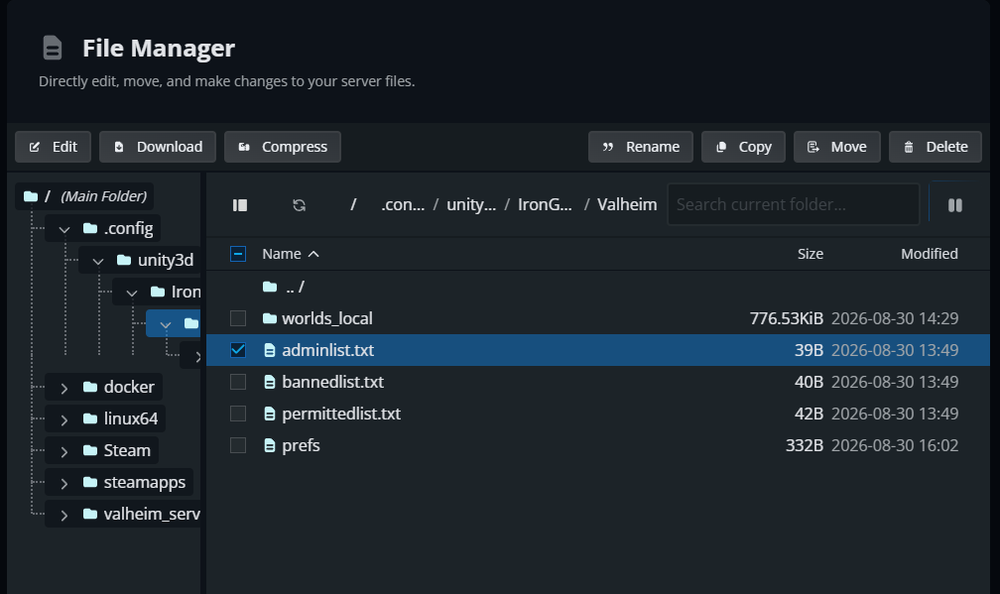
Select adminlist.txt and click Edit. Add the player's full Platform User ID on its own line. For example, you might add Xbox_253327XXXXXXXXXX. If you're adding multiple admins, place each Platform User ID on a separate line.
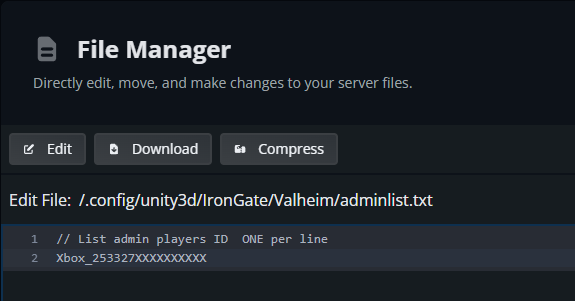
Save your changes and start the server. Have the player reconnect once the server finishes starting.
Using Admin Commands
Adding a player to adminlist.txt gives them permission to use Valheim's dedicated server administration commands. Some useful commands include:
| Command | Description |
|---|---|
help | Lists the commands available to the player. |
kick [name/ip/userID] | Kicks a player from the server. |
ban [name/ip/userID] | Bans a player from the server. |
unban [ip/userID] | Removes a player from the ban list. |
banned | Displays the server's banned players. |
ping | Displays your latency to the server. |
save | Forces the server to save the world. |
Note: Server admin permissions are separate from Valheim's developer and cheat commands. Adding someone to adminlist.txt does not automatically give them access to commands such as god, fly, or item spawning.
Admin Permissions Aren't Working
If the player still can't use admin commands, stop the server and double-check the entry in adminlist.txt. Make sure the full Platform User ID is included, including Xbox_, and that the capitalization matches the ID reported by Valheim. Each admin should also be listed on a separate line.
Confirm that you're editing the adminlist.txt file located in /.config/unity3d/IronGate/Valheim. After making any changes, restart the server and have the player reconnect.
Final Thoughts
Xbox and PC Game Pass players can be made admins on a Valheim server just like Steam players, but you'll need their full Platform User ID instead of a Steam64 ID. Once you add the correct Xbox_... ID to adminlist.txt and restart the server, the player should be able to use Valheim's dedicated server administration commands.
Need Help?
If you have questions or run into any issues, our support team is here to help! Reach out using the support widget on our website or visit our support center for further assistance.