


How to Fix a Valheim Version Mismatch

Seeing an Incompatible Version error when joining your Valheim server? Your game and the server may be running different releases. This guide walks through updating both, checking test branches, and troubleshooting mod compatibility.
Check Which Version Needs Updating
A game update can leave the server and your installed copy of Valheim on different versions. Fully close the game, check for updates, and ask the server owner to check the server as well. Updating only one side may leave the error unchanged.
Compare Valheim's in-game version with the version reported in the server's startup output. Use the game version rather than a storefront's package number. If only one player is affected, start with that player's installation. If everyone is affected after an update, check the server first.
Update Valheim on Your Device
Finish downloading and installing the update before reopening the game. On consoles, close Valheim completely rather than resuming a suspended session.
Steam
Close Valheim and open your Steam Library.
Select Valheim and install any pending update. Check Downloads if it is queued.
Wait for the download and installation to finish, then launch the game again.
PC Game Pass or Microsoft Store
Close Valheim and open the Xbox app or Microsoft Store used to install it.
Check for game updates and install any available Valheim update.
Reopen Valheim after the update finishes.
Xbox
Quit Valheim completely.
Open My games & apps and check the available game updates.
Install the Valheim update, then launch the game again.
PlayStation 5 (PS5)
Close Valheim and highlight it on the home screen.
Press the Options button and select Check for Update.
Install any available update before reopening the game.
Nintendo Switch 2
Close Valheim and highlight its icon on the HOME Menu.
Press the + Button, then select Software Update and Via the Internet.
Install the update and launch the game again.
Update the Server with SteamCMD
Navigate to your Nodecraft dashboard.
Locate your Valheim server and click Manage.
Stop the server after letting your players know it will be unavailable.
Expand Server Files in the menu on the left, then select Installer.
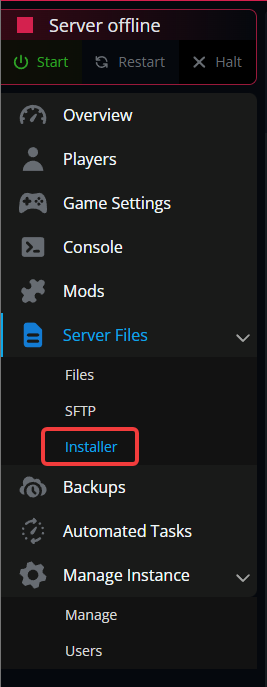
Click Run SteamCMD.

Select SteamCMD to update and validate the server files.
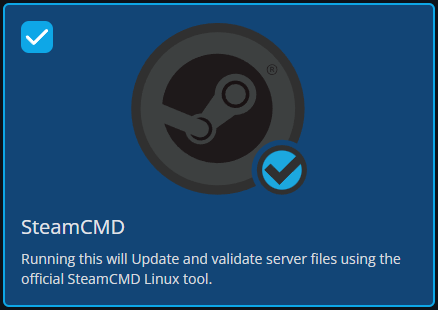
Wait for SteamCMD to finish before starting the server.
Start the server and check its startup output for the running game version.
Once startup is complete, try connecting with your updated game.
If SteamCMD fails or the server remains on an older version after it finishes, contact Nodecraft Support so we can check the installation. You do not need to reset your world to resolve a version mismatch.
Check Public Test and Preview Versions
A public-test or preview build can differ from the normal release even when both installations say they are up to date. The server and players need compatible releases from the same branch.
On Steam, open Valheim's Properties and check Betas. Use the normal release when joining a normal-release server. If you previously joined a preview through Xbox Insider Hub, check whether you are still using that preview. Back up any saves used with a test build before switching branches; a newer save may not work in an older release.
Check Mods and Game Versions
Mods can introduce their own version requirements. On a modded PC server, check that BepInEx and the installed mods support the current Valheim release. Match the versions of mods required on both the server and each player's computer; not every server-only mod needs a client copy.
Review the connection error and logs for a named mod or dependency. If you test without mods, back up the world first and use a separate test world so missing mod content does not affect your main save.
If a Platform Has Not Received the Update
If a console or storefront still offers an older build, check Valheim's official announcements for a delayed rollout. When an update is delayed on one platform, you may need to wait for a compatible release before those players can reconnect. Repeated reinstalls will not make an unreleased update available.
Final Thoughts
Most version mismatches come down to getting the game and server onto compatible releases. Check both sides, reopen the game after updating, and review test branches or mods if the versions already match.
Need Help?
If you have questions or run into any issues, our support team is here to help! Reach out using the support widget on our website or visit our support center for further assistance.