


Valheim Admin Commands Overview

Valheim admin commands let trusted players moderate a dedicated server, save its world, and adjust world modifiers. On a dedicated server, these utilities require the player's complete Platform User ID to be listed in adminlist.txt. They do not require devcommands.
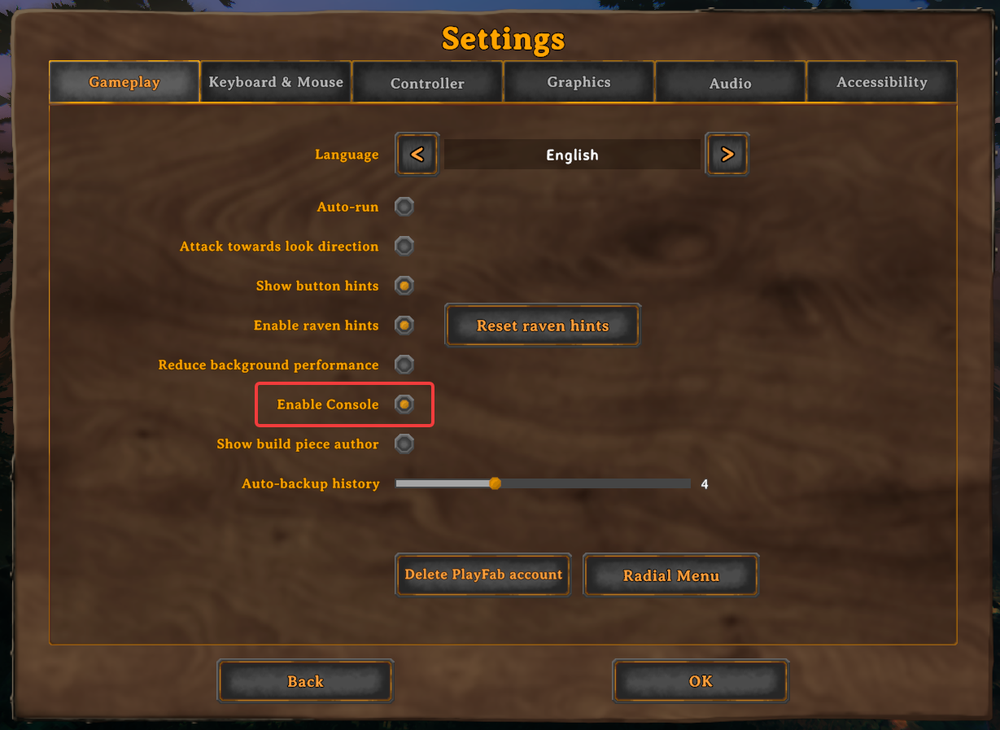
To open the console, select Settings and then Gameplay. Turn on Enable Console, highlighted below, return to your game, and press F5. Connect to your dedicated server using the character associated with your admin-listed account, then enter a command and press Enter.
Use the complete platform-prefixed ID shown by Valheim when adding an admin, including Steam or crossplay accounts. For setup instructions, see our guide on adding admins to your Valheim server. Being on the admin list does not automatically unlock developer commands such as spawning items.
These commands are available to authorized admins on dedicated servers. Player moderation applies to multiplayer sessions; there are no other players to kick or ban in a solo world. Saving and world-modifier commands can also be used in single-player, so the entire list should not be treated as dedicated-server-only.
Valheim Admin Commands
| Command | Effect | Notes |
|---|---|---|
ban [name/ip/userID] | Bans the specified player. | Prevents the banned player from rejoining until the ban is removed. |
banned | Displays the full list of banned users. | Use this to review bans before removing one. |
kick [name/ip/userID] | Disconnects the specified player. | A kick does not create a ban; the player can reconnect. |
resetworldkeys | Resets all world modifiers to their defaults. | Does not reset gameplay progression keys. |
save | Forces the game to save the world. | On a dedicated server, saves the server world. |
setworldmodifier [name] [value] | Sets a world modifier slider value. | Replace the parameters with a supported modifier name and value. |
setworldpreset [name] | Resets all world modifiers to a named preset. | Applies the preset's modifier configuration. |
unban [name/ip/userID] | Removes the specified user's ban. | Use the identifier associated with the ban. |
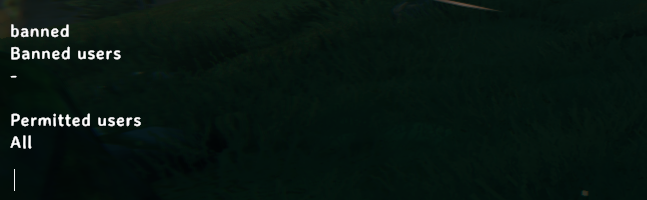
To check the server's ban list, enter banned in the console and press Enter. In the example below, no users are banned, and the permitted-users list shows All.
Using Command Parameters
Replace bracketed parameters with the player or setting you want to target, without typing the brackets. For example, kick PlayerName disconnects that player, while ban PlayerName prevents them from rejoining. Use the exact name, IP address, or complete Platform User ID accepted by the command.
Run banned to review existing bans before using unban with the relevant identifier. For world modifiers, replace [name] and [value] with a supported modifier and setting. setworldpreset replaces the modifier configuration with a preset, while resetworldkeys restores modifier defaults without clearing gameplay progression keys. Review these changes with your players before applying them.
Final Thoughts
Valheim's admin utilities give trusted players the tools to moderate a dedicated server and manage its world settings. Keep admin access limited to trusted accounts, check the target before kicking or banning anyone, and use save when you need to save the world immediately.
Need Help?
If you have questions or run into any issues, our support team is here to help! Reach out using the support widget on our website or visit our support center for further assistance.