


How to Pick Corruption or Crimson in Terraria

Terraria's dedicated server software does not include a setting to choose between the Corruption and the Crimson when generating a new world. When you create a world directly through the server panel, Terraria selects the world evil at random.
To guarantee either Corruption or Crimson on your server, you need to generate the world locally in singleplayer and upload the .wld file to your Nodecraft server.
Before You Generate Your World
World generation settings are baked directly into the .wld file the moment Terraria creates it. Make sure you set your Size, Difficulty, Seed, and Evil options in singleplayer before clicking create, as these values cannot be changed after generation without starting a new world.
The world creation settings in the Nodecraft panel only apply when the server generates a brand-new world of its own; they do not override the difficulty or size stored inside an uploaded .wld file.
Generate a Corruption or Crimson World Locally
Creating the world in your Terraria client gives you direct access to the World Evil selector before generation begins.
Launch Terraria on your computer and click Single Player.
Select any character to open the Select World menu, then click New.
Enter your World Name and an optional Seed.
Select your preferred Size (Small, Medium, or Large) and Difficulty (Journey, Classic, Expert, or Master).
Under Evil, select Corruption or Crimson instead of Random.

Click Create and wait for Terraria to finish building and saving the world.
Once generation finishes and you return to the Select World list, the .wld file is saved on your computer and ready to upload. You do not need to load into the world with a character first.
Note: Leave Move to Cloud turned off for the world in your singleplayer menu. Moving a world to Steam Cloud removes the .wld file from your local Worlds folder, which hides it when you go to upload it.
Locate Your Local World File
Terraria stores singleplayer worlds as .wld files inside your local game folder. Depending on your operating system, open the matching directory below:
| Operating System | Default World File Path |
|---|---|
| Windows | C:\Users\%USERNAME%\Documents\My Games\Terraria\Worlds |
| macOS | ~/Library/Application Support/Terraria/Worlds |
| Linux | ~/.local/share/Terraria/Worlds |
Look for the .wld file that matches the name of the world you just created. If you see a matching .wld.bak backup file alongside it, you can upload both files together.
If you are running a modded tModLoader server instead of vanilla Terraria, your local worlds are stored inside the Terraria/tModLoader/Worlds subfolder and include both .wld and .twld files. Both file types must be uploaded together for a modded world to load properly.
Upload the World to Your Nodecraft Server
Important: Always stop your Terraria server before uploading world files. Uploading files while the server is running can overwrite or corrupt your save data.
Navigate to your Nodecraft dashboard.
Locate your Terraria server and click Manage.
Stop the server if it is currently running.
Click Files & Backups in the menu on the left, then select Files.
Open the /worlds/ folder inside the main server directory.
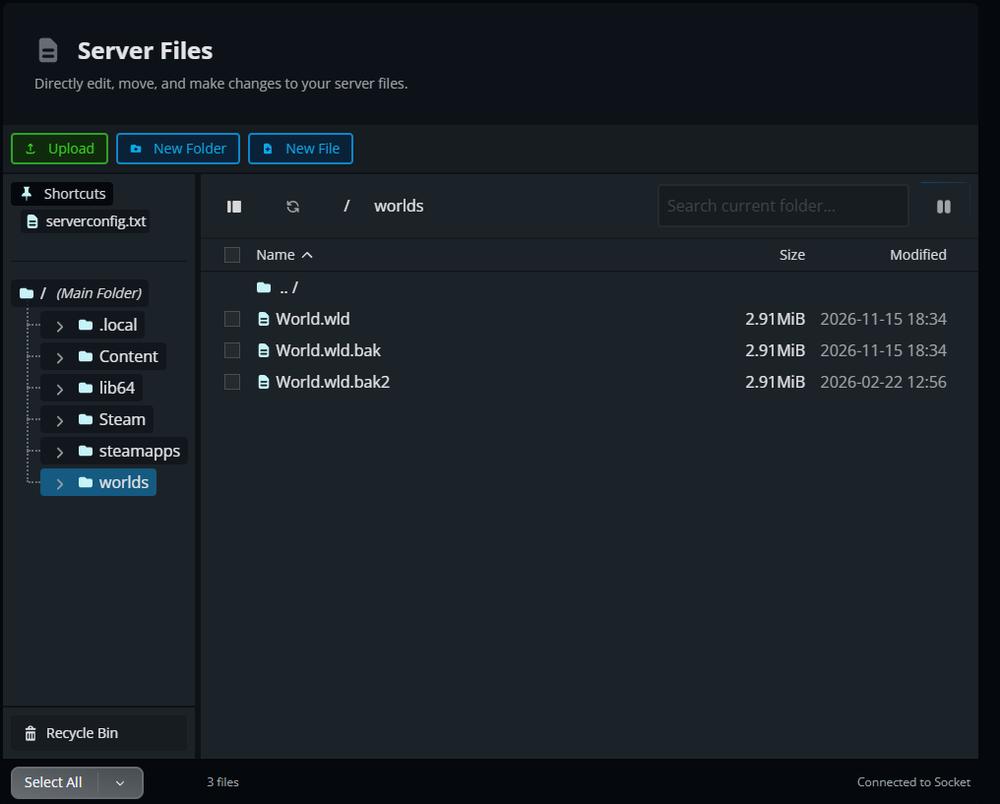 6. Click Upload or drag and drop your .wld file (and any matching .wld.bak or .twld files) from your computer into the /worlds/ folder.
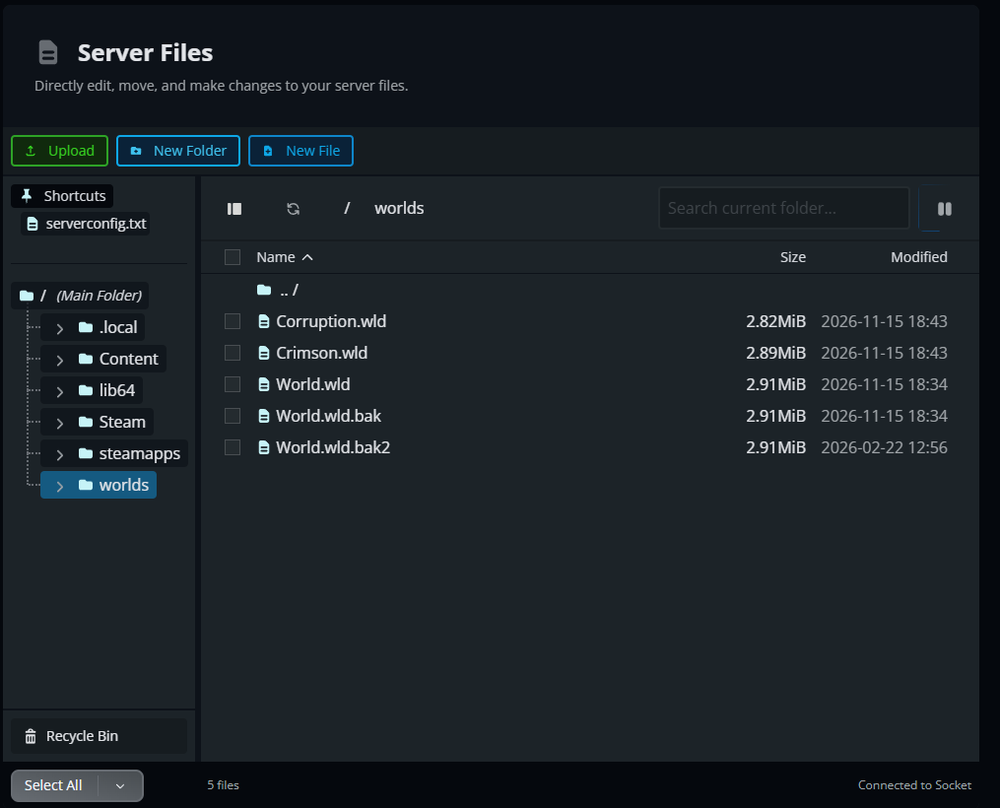
If you have not started your server yet and do not see a /worlds/ folder in Files, start and stop the server once to generate the default directories, or click New Folder and name it worlds.
Select and Load Your Uploaded World
Uploading the .wld file places the save on the server, but you still need to tell Terraria to load that specific world on startup.
Click Game Settings in the menu on the left, then select Manage Worlds.
Locate the world you just uploaded and click Select.
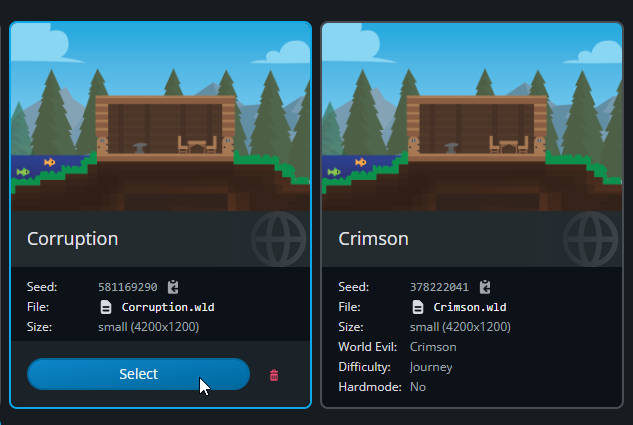
Start your server.
When the server finishes booting, connect to confirm your chosen Corruption or Crimson world is active. Note that if you generated a Journey difficulty world locally, only Journey Mode characters will be able to join the server.
Final Thoughts
Creating your world in singleplayer lets you choose Corruption or Crimson before bringing it to your server. Upload the world file, select it under Manage Worlds, and you're ready to explore with your friends. Looking for the best server hosting for your next Terraria adventure? Nodecraft makes it easy to bring your chosen world online and get everyone playing together.
Need Help?
If you have questions or run into any issues, our support team is here to help! Reach out using the support widget on our website or visit our support center for further assistance.