


How to Add a Password to a Space Engineers Server
In this guide we are going to go over how you can add a password to your Space Engineers server. Adding a password to your server is a great way to control who can access your server.
Open your Dashboard
Locate your Space Engineers server and click on the Panel button.
Once on your panel, stop your server.
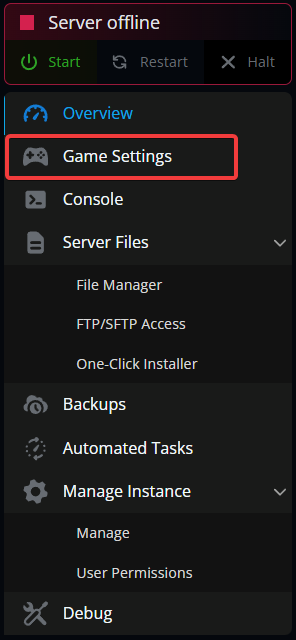
Open the Game Settings.
Once on the game settings page, you should be on the basic settings already. Look for the server password section.
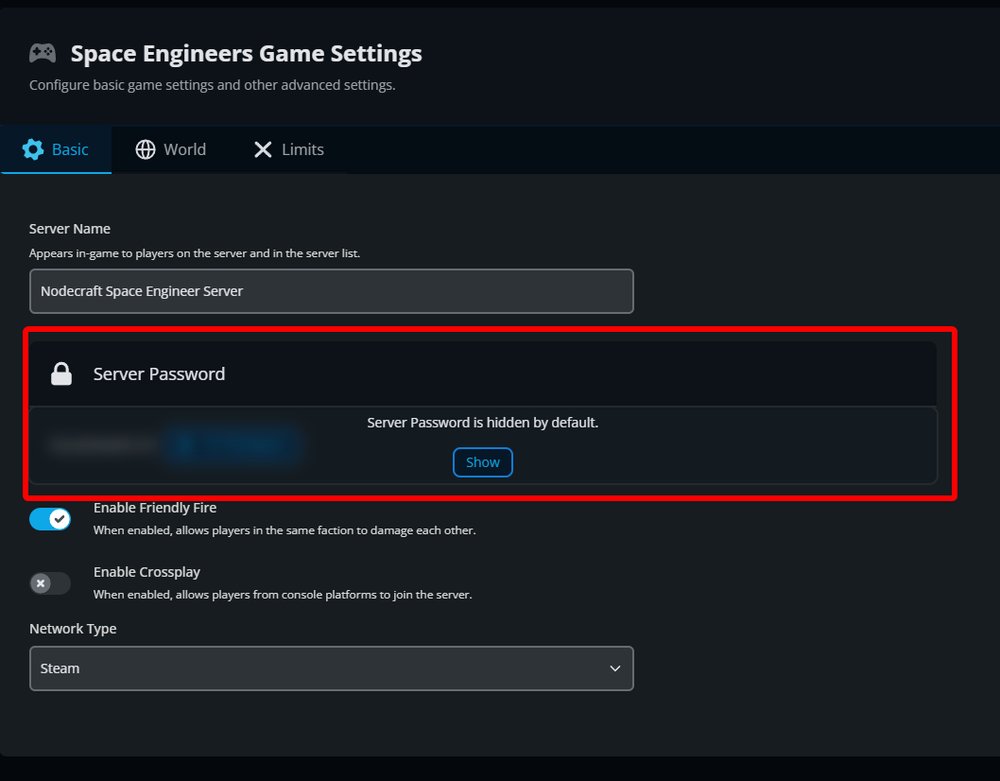
Click on the Show button to unlock the setting.

Click on Set Password.

Enter your desired password and then click on Set.
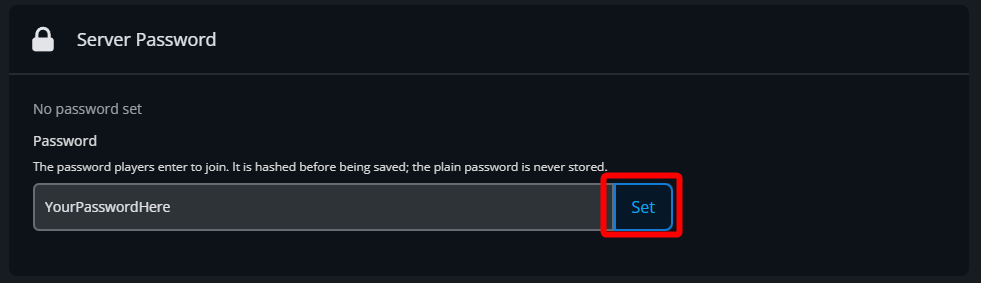
Once you see Password set successfully you can start your server.
Conclusion
You have now set up a password on your Space Engineers server. With a password now set you can provide it to only those who you want to be able to join your server.
Need Help?
If you have questions or run into any issues, our support team is here to help! Reach out using the support widget on our website or visit our support center for further assistance.