


How to Change the XP Rate on a Project Zomboid Server

In this guide we are going to cover how you can change the XP rate on your Project Zomboid server. Changing the XP rate allows you to adjust how quickly players gain experience, either by applying a global multiplier or customizing the multiplier for each skill individually.
Changing the XP Rate
Open your Dashboard.
Locate your Project Zomboid server and click on the Manage button.
Under Game Settings, click on Sandbox Settings.
On the Player tab locate the Skill Multipliers section near the bottom.
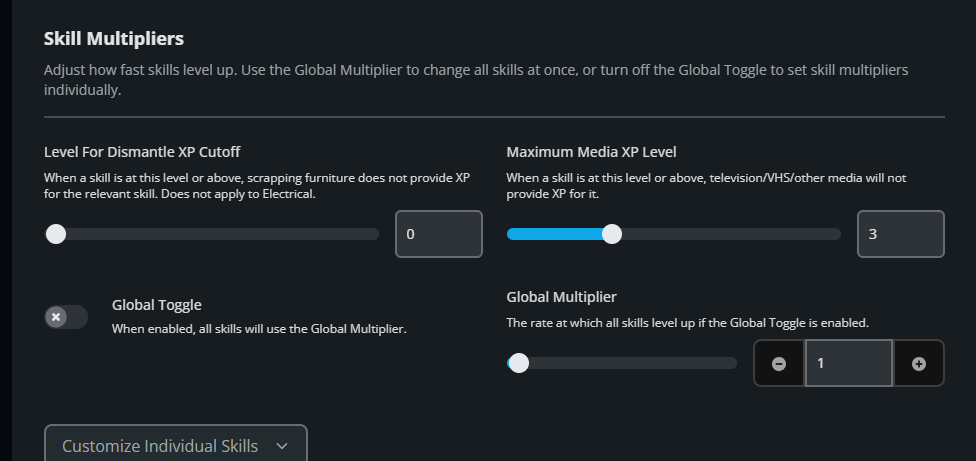
To use the same XP multiplier for all skills, turn Global toggle on and adjust the Global Multiplier to your desired value.
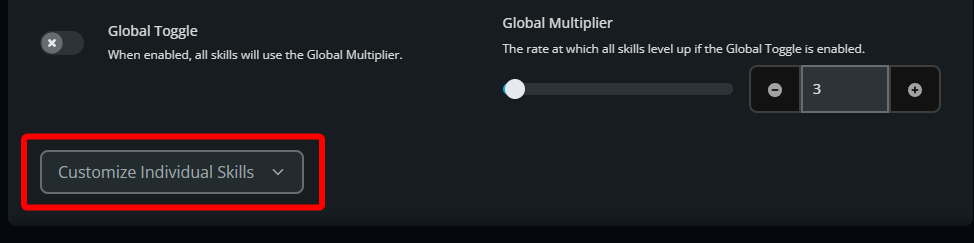
Note: To adjust skills individually instead, turn Global off and click on Customize Individual Skills. Set your desired XP multiplier for each skill.
Once the options have been changed, click on Submit.
Start/restart your server to apply the changes.
Conclusion
You have now changed the XP rate on your Project Zomboid server. Players will gain experience based on your chosen global multiplier or individual skill multipliers.
Need Help?
If you have questions or run into any issues, our support team is here to help! Reach out using the support widget on our website or visit our support center for further assistance.