


Change the Name and Description of a Project Zomboid Server

In this guide we are going to cover how you can change the name or description of Project Zomboid Server. Changing the name is not only a way to customize the server but it can also aid in finding your server on a server list if you choose to have the server listed publicly.
Changing the Name or Description
Open your Dashboard
Locate your Project Zomboid server and click on the Panel button.
Once on your panel, click on the Game Settings tab.
Once on the server settings page you should be on the basic tab and see the Public Name and Server description at the top of the page.
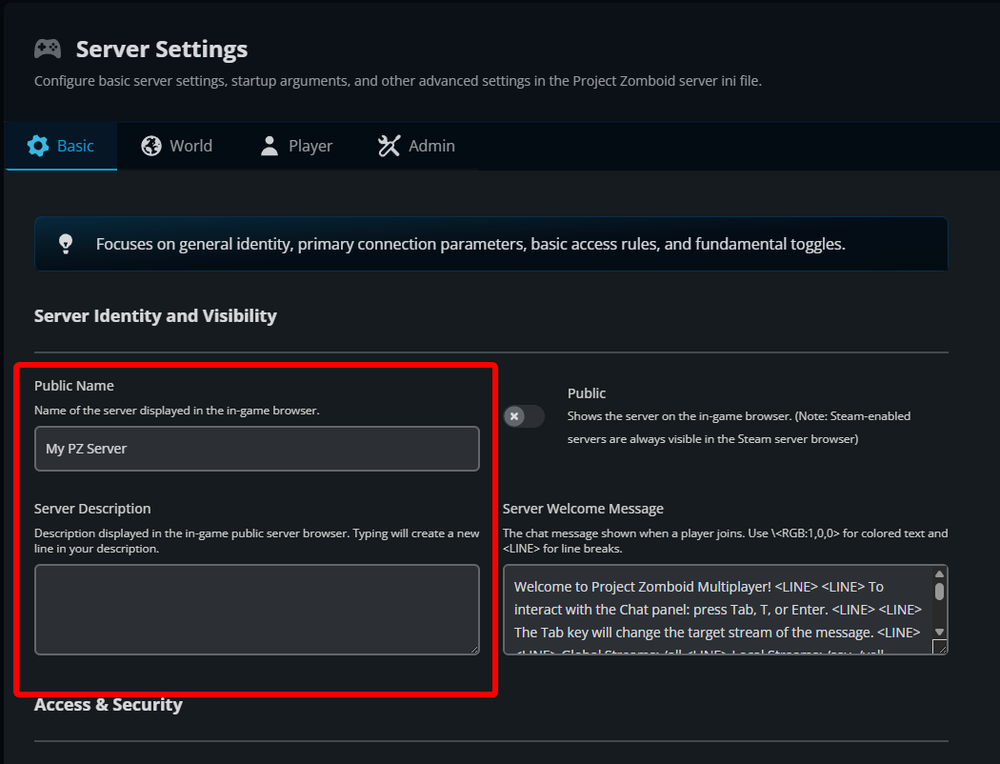
You can now make any desired changes to both the name and description.
Once completed, scroll down and click on the Submit button.
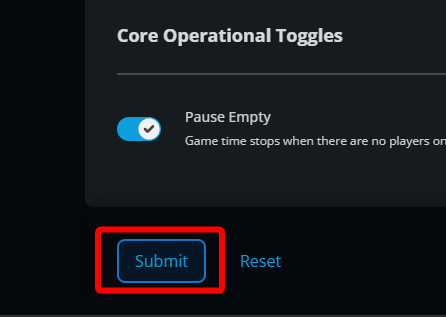
Start/Restart your server.
Conclusion
You have now changed the Description and/or the server's name.
Need Help?
If you have questions or run into any issues, our support team is here to help! Reach out using the support widget on our website or visit our support center for further assistance.