


How to Join a Codename CURE II Server
How to Join a Codename CURE II Server
Ready to jump into your Codename CURE II server? This guide walks you through finding your Server Name in the Nodecraft control panel and connecting through the in-game server browser.
Note: Make sure your server is running and displays Online in the Nodecraft panel before attempting to join.
Finding Your Server Name
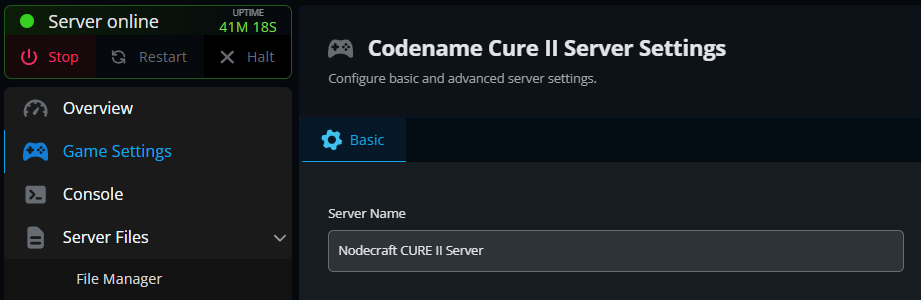
Open your Nodecraft dashboard and select your Codename CURE II server.
Open the server Panel, then click Game Settings from the left-hand menu.
Under the Basic tab, locate the Server Name field.
Note the name shown in this field. This is the name you will search for in-game. You can also use this field to set a different server name.
Joining Your Server Through Browse Games
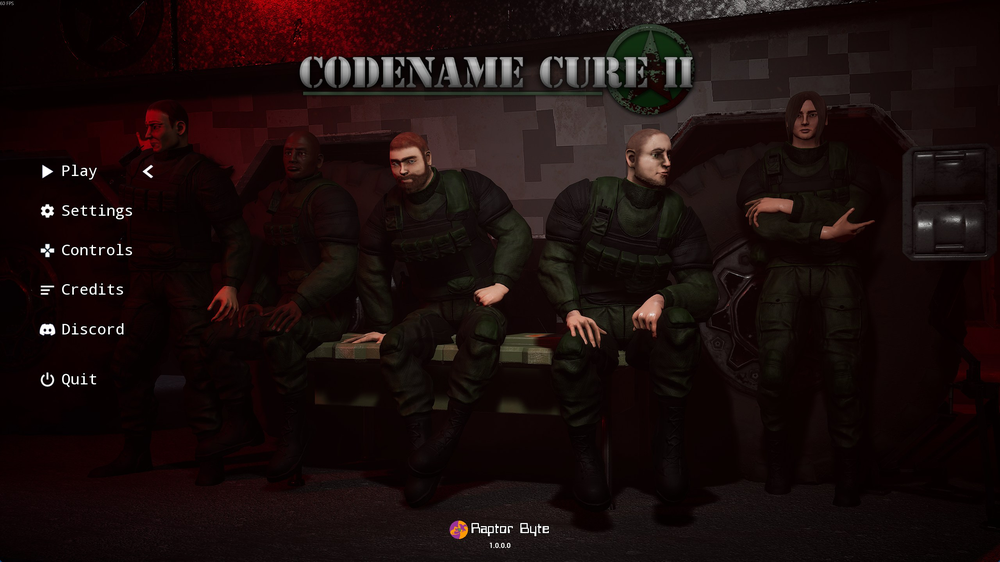
Launch Codename CURE II.
From the main menu, click Play.
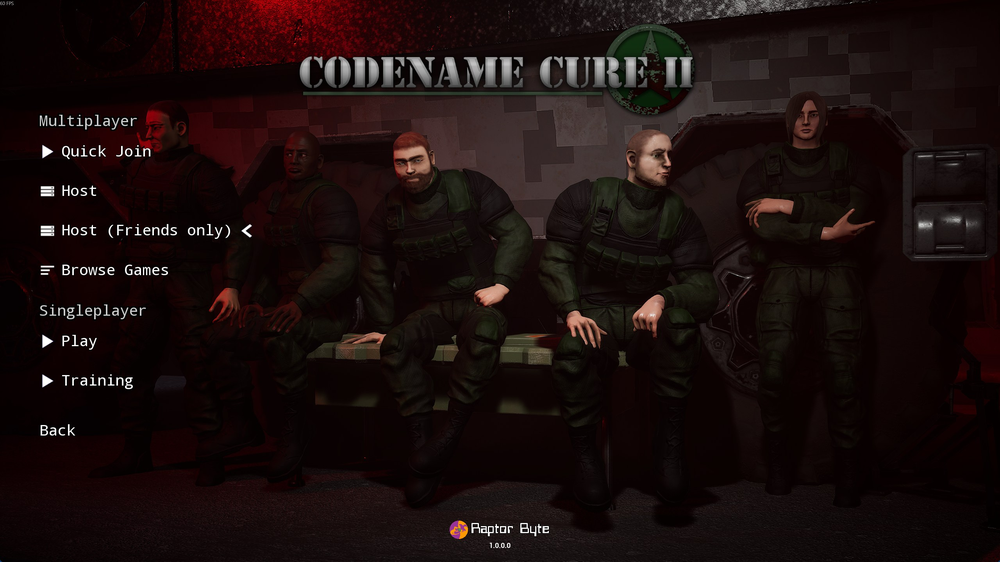
Under the Multiplayer section, click Browse Games.
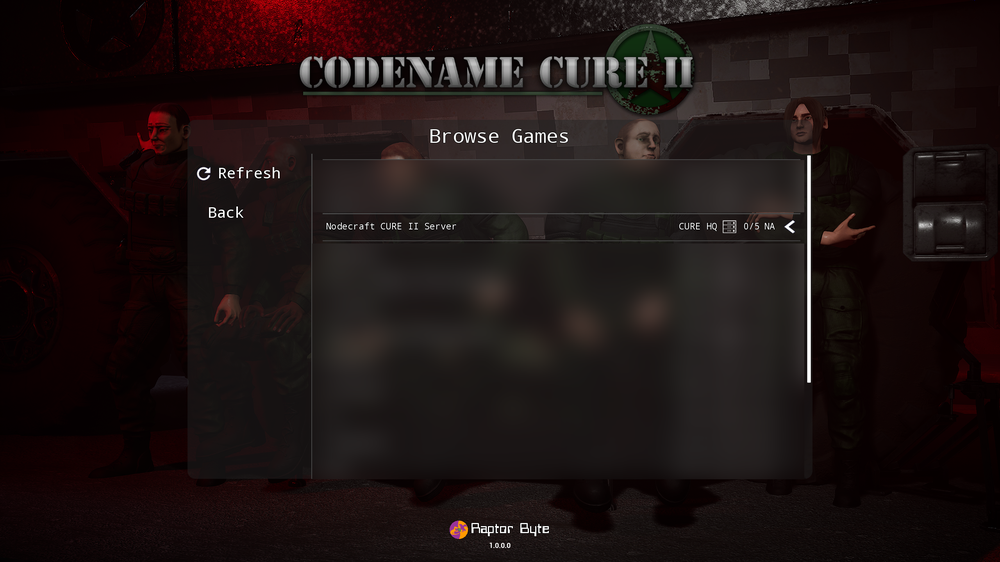
Select the search field at the top of the Browse Games window.
Enter the Server Name shown on your Nodecraft Game Settings page.
Click Refresh if the server list does not update automatically.
Once your server appears in the list, select it to join.
Troubleshooting Tips
If your server does not appear in the browser:
Confirm that the server displays Online in the Nodecraft panel.
Make sure the name entered in the search field matches the Server Name in Game Settings.
Click Refresh and allow a few moments for the server list to update.
Make sure your game is fully updated before trying again.
Conclusion
You are now ready to join your Codename CURE II server. Share the server name with your squad so they can follow the same steps and connect.
Need Help?
If you have questions or run into any issues, our support team is here to help! Reach out using the support widget on our website or visit our support center for further assistance.